Customer Companies
You can create potential Customer Companies (crm_customer_company) to connect them to the leads, opportunities, and contacts of representatives from these companies. By default, only active companies are displayed in the list interface.
The Customer Company table is a child table of the Company (org_company) table of the SimpleOne platform.
Create a customer company
Role required: crm_marketeer, crm_admin, crm_sales, crm_manager. Only crm_admin can edit existing records.
To create a customer company, complete the steps below:
- Navigate to CRM → Sales → Customer Companies.
- Click New and fill in the fields.
- Click Save or Save and exit to apply the changes.
Customer Company form fields
- General
- Documents
| Field | Mandatory | Description |
|---|---|---|
| Full name | N | Full legal name of the company recived through an integration. The field is read-only. It is empty if:
|
| Name | Y | Add the title of the company. |
| Relationship type | Y | Specify the relationship type between your company and the company you are creating. Available options: |
| Class | N | Specify the company class. Available options:
|
| Main contact | N | Specify the main contact of the customer company. |
| Website | Y | Specify the URL to the company website. |
| TIN | Y | Specify the company's TIN. The value must contain 9, 10 or 12 digits. |
| Category | N | Select the company category. Available options:
|
| N | Specify the email of the company. | |
| Phone | N | Specify the phone number of the company. |
| Location (city) | N | Specify the company's location. |
| Industry | N | Specify the company's industry. |
| Parent company | N | Specify a parent company. |
| Account manager | N | Specify the account manager responsible for the communication with the company. |
| Description | N | Add a description of the company. |
| Responsibilities | N | An employee responsible for the interaction with the company. The field is filled in automatically with the employee who created the record. After saving the record, you can add more responsibilities. |
| Field | Mandatory | Description |
|---|---|---|
| Link to document folder | N | Create or Open a document folder for this company in SharePoint. If the SharePoint connection is not configured, use the Attachment widget to add the company documents. |
The form contains the Activity Feed widget. Only users with the crm_marketeer, crm_admin, crm_sales, crm_manager roles can leave comments there.
The record contains the following related lists:
- Customer Contacts – the list of contacts associated with the company.
- Opportunities – the list of opportunities created for the company.
- Certificates – the list of certificates granted to the company's employees.
- Marketing Lists – the marketing lists that include the company.
- Leads – the list of leads created for the company.
- CRM Tasks – the list of tasks created for the company.
- Actions – the list shows all actions (CRM tasks, phone calls, meetings, emails) created for the company.
- Phone Calls – the list of phone calls to the company.
- Meetings – the list of meetings created for the company.
- Emails – the list of emails sent to the company or received from it.
- Duplicate Companies – the list of companies merged with the current record and deactivated as duplicates. The list is only visible to the users with the crm_manager, crm_read_admin, crm_admin and admin roles if there is at least one completed merge.
Manage a customer company
Navigate to CRM → Sales → Customer Companies to see previously created customer companies.
UI-actions available on the list interface:
-
Add to marketing list – the action is available to admin, crm_admin, crm_sales, crm_manager, crm_marketeer in the row context menu. There are several ways to make a selection of records that need to be added to the marketing list:
- Select the checkboxes next to the records to add those records to the marketing list
- Filter the list to add the filtered records to the marketing list
- Filter the list and select the checkboxes next to the required records among the filtered ones. Only the records with selected checkboxes will be added to the marketing list.
- If you have not filtered the list and have not selected any records, all of the records from the list will be added to the marketing list.
In the modal window that opens after clicking Add to marketing list, you will see the number of records to be added, and a field in which you can specify the marketing list to add the records. If you select inactive records or partners, they will not be added. Click Add to add the selected records to the marketing list.
Open the Customer Company record to manage it. The actions available for the existing customer companies:
- Add to marketing list – click to add the company to the marketing list. The action is only available for the crm_sales, crm_manager roles.
- Deactivate / Activate – click to change the company's Active parameter. Inactive customer companies are hidden from the default list view and cannot be added to the marketing list. The action is available for the crm_manager role.
- Merge duplicates – the UI action is located in the burger menu of active records and available to the users with the crm_manager, crm_admin, admin roles. Click it to open the Merge duplicates modal window where you can select the company records to merge with the current record and deactivate them as a result. Find more information in this article.
Responsibilities
A responsiblity is en entity that shows that an employee of a specific sales direction is responsible for the interaction with the customer company. To create a responsibility, complete the following steps:
- Navigate to CRM → Sales → Customer Companies and open any record.
- Click next to the Responsibilities field and fill in the form fields.
- Click Save.
You can also add a responsibility directly through the table. To do so, complete the following steps:
- Navigate to System Settings → All Tables.
- Find the Responsibility (crm_responsibility) table and open its record.
- Click Create record and fill in the form fields.
- Click Save or Save and exit.
Responsiblity form fields
| Field | Mandatory | Description |
|---|---|---|
| Company | Y | Specify a customer company for which the employee is responsible. |
| Sales direction | Y | Specify a sales direction to which the employee belongs. |
| Responsible | Y | Specify the responsible employee. |
Note that only one employee from a sales direction can be responsible for a specific company. However, you can add responsibilities regarding one company for the employees of different sales directions, or for the same employee who represents more than one sales direction.
If you specify a sales direction for which a responsiblity regarding the company already exists, and select another employee, the older record will be replaced by the new record with the new employee, and the previous responsibility will be deleted.
Merge duplicates
Roles required: crm_manager, crm_admin, admin.
Merge company records in case of their legal merge or accidental creation of duplicate records (for instance, during the import). To do so, open the master company form (it must be active) and in the burger menu click Merge duplicates to open the modal window of the same name:
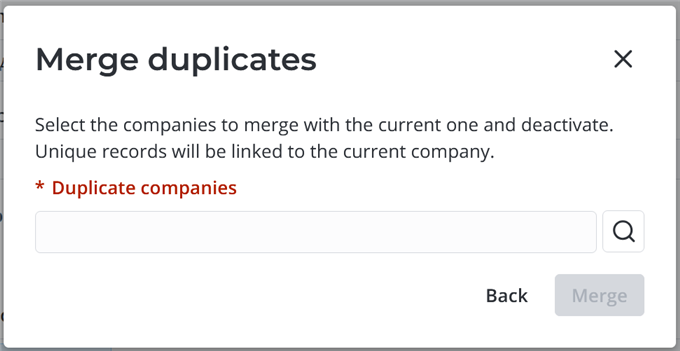
The main company's Name, TIN, and Website fields must be completed for the duplicates to be merged with it.
The list of possible Duplicate companies is filtered automatically to display active companies that match at least one of the following criteria:
- The company name corresponds to the current company Name without the organizational and legal form.
- The TIN is equal to the current company's TIN.
- The website contains the current company Email domain.
Click Merge to complete the merge. As a result:
-
The duplicate records are deactivated.
-
If the master company had empty fields that were completed in duplicates, these values are copied to the master company. If there is more than one such duplicate, the values from the latest updated duplicates are copied to the master company.
-
If the Name, TIN, or Website field is not completed in the duplicate company, these fields are completed with the values from the main company when merged.
-
The duplicate company is replaced with the master company if the duplicate was specified in:
- The Potential customer, Competitors fields of opportunities.
- The Existing company, Competitors fields of leads.
- The Company field of certificates. The Specialist field contains the contact (active or inactive) that has the master company specified in the Company field after the merge.
- The Company field of the Marketing List to Company table records.
- The Partner field of partnership agreements.
-
The duplicate companies' contacts are bound to the master company according to the rules.
Rules of contact merging
If there is no contact with such a phone number and email in the master company, the value of the Company field for the contact is changed to the master company. In other cases, the result depends on whether the master and duplicate company contacts have an account in the system and if it is active.
The contact in the master company has The contact in the duplicate has Action done to the master company contact Action done to the duplicate company contact An active account An active account - The value of the Company field is replaced with the master company An active account An inactive account, no account - - The value of the Company field is replaced with the master company
- Deactivation
An inactive account An active account Deactivation The value of the Company field is replaced with the master company An inactive account An inactive account, no account - - The value of the Company field is replaced with the master company
- Deactivation
No account An active account, an inactive account Deactivation The value of the Company field is replaced with the master company No account No account - - The value of the Company field is replaced with the master company
- Deactivation
-
A record is added to the Duplicate Companies Log (crm_company_merge_log) table for each merged duplicate. The agent interface users cannot manually create records of this table. New records can only be added to the table when a merge is completed on the customer company form. All Duplicate Companies Log form fields are read-only.
Duplicate Companies Log form fields
- General
- Merged Records
| Field | Mandatory | Description |
|---|---|---|
| Master company | Y | The master company that the duplicate was merged with. |
| Duplicate company | Y | The duplicate that was deactivated and the records of which were bound to the master company. |
| State | N | The current state of the merge. Possible options:
|
| Field | Mandatory | Description |
|---|---|---|
| Contacts | N | The duplicate company contacts bound to the master company. |
| Actions | N | The duplicate company CRM actions bound to the master company. |
| Leads | N | The duplicate company leads bound to the master company. |
| Certificates | N | The duplicate company certificates bound to the master company. |
| Marketing lists | N | The duplicate company marketing lists bound to the master company. |
| Opportunities | N | The duplicate company opportunities bound to the master company. |