Content Tools
The B2B CRM application content management tools allow you to structure the content and track the work progress on it.
Content boards
Roles required:
- admin, crm_admin, crm_read_admin can view the boards of all sales directions.
- crm_sales, crm_manager, crm_pam, crm_presale, crm_marketeer can view the board of their sales direction.
All existing content that is divided into categories based on the current state is displayed on the kanban board. Navigate to CRM → Boards → Content to open a board. You can view the board for all content or add a board for a specific sales direction.
-
Content states.
-
The limit of the content items in one state. If the limit is exceeded, the column is highlighted with red.
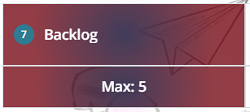
-
The section of the board for the content with the Expedite checkbox selected. You can see the amount of such content in brackets.
-
The section of the board for the rest of the content. You can see the amount of content with the Expedite checkbox cleared in brackets.
-
The displaying of a content record on the board when Blocked checkbox is not selected.
-
Content name.
-
Author.
-
Service or product.
-
Subject-matter expert.
-
The number of days since the last change of the record.
-
The display of a content record on the board when Blocked checkbox is selected.
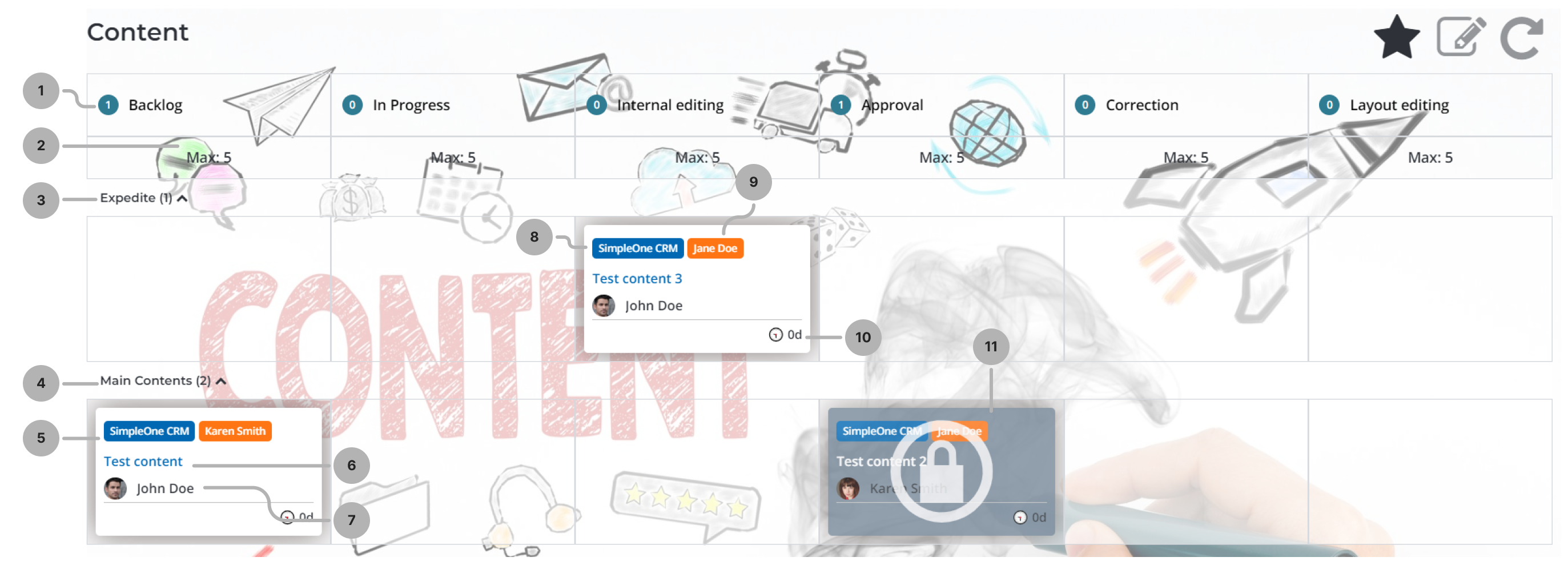
The following UI actions are available on the board:
- – adds the content board to Favorites.
- – opens the board configuration, where the administrator can change the board Name, Sales direction, Background and JSON config.
- – refreshes the page.
References
References (crm_reference) are created automatically from the opportunities that reached the Support and post-sale sales stage. The references allow you to save information about the successful cases to post it later on the external resources. You can also add references manually on the Reference form.
Roles required: any "out-of-the-box" B2B CRM role.
To create a reference, complete the steps below:
- Navigate to CRM → Content Management → References.
- Click New and fill in the fields.
- Click Save or Save and exit to apply the changes.
Reference form fields
| Field | Mandatory | Description |
|---|---|---|
| Opportunity | N | Specify the opportunity from which the reference originated. |
| Customer | N | The customer company from the Potential customer field of the opportunity. The value is filled in automatically. |
| Logo on the website | N | Specify the current logo state, depending on whether the customer approved publishing their logo on an external resource in the successful cases section. Available options:
|
| Logo | N | Attach a file in the .svg, .png, .webp, .avif, or .jpg format no larger than 300 KB. |
| Success story | N | Specify the current success story state, depending on whether it is published on an external resource in the section for the successful cases. Available options:
|
| Testimonial | N | Specify the current testimonial state, depending on whether it is published on an external resource in the section for the successful cases. Available options:
|
| Success story content item | N | Specify the content created from the success story. |
| Testimonial content item | N | Specify the content created from the testimonial. |
Tags
Role required:
- Create – crm_sales, crm_manager, crm_marketeer, crm_pam, crm_admin, crm_certificate_manager, admin.
- Read – any user with an "out-of-the-box" B2B CRM role.
- Edit and delete records of their sales directions – crm_sales, crm_manager, crm_marketeer, crm_pam, crm_certificate_manager. Users with the crm_admin, admin roles can edit and delete any records.
You can save Tags (crm_tag) used on the external resources for your products or services.
To create a tag, complete the steps below:
- Navigate to CRM → Content Management → Tags.
- Click New and fill in the fields.
- Click Save or Save and exit to apply the changes.
Tag form fields
| Field | Mandatory | Description |
|---|---|---|
| Name | Y | Add a tag. |
| Service or Product | N | Specify a service or product to which the tag is related. You can only specify a service or product related to the sales directions that you belong to. If the Sales direction field is completed, an additional limitation is applied to this field's value: the service or product must be related to the specified sales direction. |
| Sales direction | N | Specify the sales direction to which the tag is related. The field is automatically completed with the first found sales direction of the current user. If you belong to more than one sales direction, you can change the value to another one of them. If the Service/Product field is completed, an additional limitation is applied to this field's value: the sales direction must be related to the specified service or product. |