Funnels
Use funnels to work with visual representation of the required data illustrating the conversion to the previous/first state or the number of records in each state.
Create a funnel
Roles required:
-
Create – crm_sales, crm_manager, crm_marketeer, crm_pam, crm_presale, crm_certificate_manager, crm_admin, admin.
-
Read – any agent interface user.
-
Edit, delete – crm_admin, admin. Users with the crm_sales, crm_manager, crm_marketeer, crm_pam, crm_presale, crm_certificate_manager roles can edit and delete the funnels only if they are any of the following:
- creator,
- creator's manager,
- creator's delegate.
Only users with the crm_admin or admin role can edit funnels with the Is default checkbox selected.
To create a funnel, complete the following steps:
- Navigate to CRM → Settings → Funnels.
- Click New and fill in the fields.
- Click Save or Save and view.
Funnel form fields
| Field | Mandatory | Description |
|---|---|---|
| Table | Y | Specify the table whose records need to be displayed as a funnel. |
| Title | Y | Specify a title for the funnel. The funnel's title will be displayed in the data presentation. |
| Funnel type | N | Select the funnel type. Available options:
|
| State field | Y | Select a Choice type field from the specified Table or its parent table. Each stage of the funnel will represent records in this state visualizing it. |
| State order field | Y/N | The field appears after the State field and Choice table fields are completed. Select the column of the choice table containing the order of the states. The field will be cleared if you change the value of the State field. |
| Sum by field | N | Select the column of the specified Table or its parent table whose values need to be summed and displayed in the funnel. Integer, Decimal, and Float type columns are available for selection. |
| Is default | N | Select the checkbox to access the funnel as the default one by clicking Open funnel under the burger menu in the list interface. The checkbox is editable only for users with the crm_admin or admin role and selected by default when a user with one of these roles creates a funnel record for a Table that has no default funnel yet. The checkbox will be automatically cleared if the user saves another funnel with the Is default checkbox selected. |
| Inherited | N | Select the checkbox if the funnel must include records of its child tables. |
| Hide empty states | N | Select the checkbox to hide the stages corresponding to the states having no records. |
| Preferred for me | N | Activate the toggle to access this funnel instead of the default one by clicking Open funnel under the burger menu in the list interface of the specified Table. When you activate the toggle, a corresponding user preference is created. If you had a different funnel selected as preferred for the table, the corresponding preference is overwritten. If you deactivate the toggle, the preference is deleted, and the default funnel will open for you from that moment. |
| Ignored states | N | Specify states in which records must not be displayed in the funnel and considered for conversion calculation. |
| Condition | N | Using the condition builder create a condition to filter which records from the specified Table are included in the funnel. |
Displayed Data section of the Funnel form fields
| Field | Mandatory | Description |
|---|---|---|
| Sum | N | Select the checkbox for the funnel stages to display the sum by the parameter specified in the Sum by field for the records included in a stage. The checkbox becomes editable after completing the Sum by field. |
| Conversion percentage | N | Select the checkbox if you need to display the conversion percentage to the previous/first state on funnel stages. The field is displayed if the Funnel type is set to Based on conversion. |
| Conversion from previous state | N | Select the checkbox to calculate conversion according to the formula: Number of records that reached the current state / Number of records that reached the previous state. If you clear the checkbox, the following formula applies: Number of records that reached the current state / Number of records that reached the first state. The value of this checkbox defines the conversion calculation in both funnel and bar chart. The field is displayed if the Conversion percentage checkbox is selected. |
| Number of records | N | Select the checkbox to display the number of records in the corresponding state on each of the funnel stages. |
| Bar chart | N | Select the checkbox to display a bar chart in addition to the funnel. The screen width will be split equally between the funnel and bar chart. |
| Display in bars | Y/N | The field is displayed and mandatory when the Bar chart checkbox is selected. Select the parameter on which the bar chart must be based. Available options:
|
Use a funnel
There are two methods to open a funnel. The first method:
-
Use the navigator to open the list interface of the required table.
-
In the burger menu , click Open funnel.
tip- If no funnels have been added to the table, the system will suggest creating one.
- If you have created a condition using the condition builder in the list interface, it will be applied to the funnel as well for the presentation to include only the records that meet the specified criteria. If the funnel has its own condition configured, it will be replaced with yours, and the funnel will be marked as containing changes in the widget.
The second method:
- Navigate to CRM → Settings → Funnels.
- Find the funnel that you need to view in the list and open its form.
- In the upper-right corner, click Open funnel.
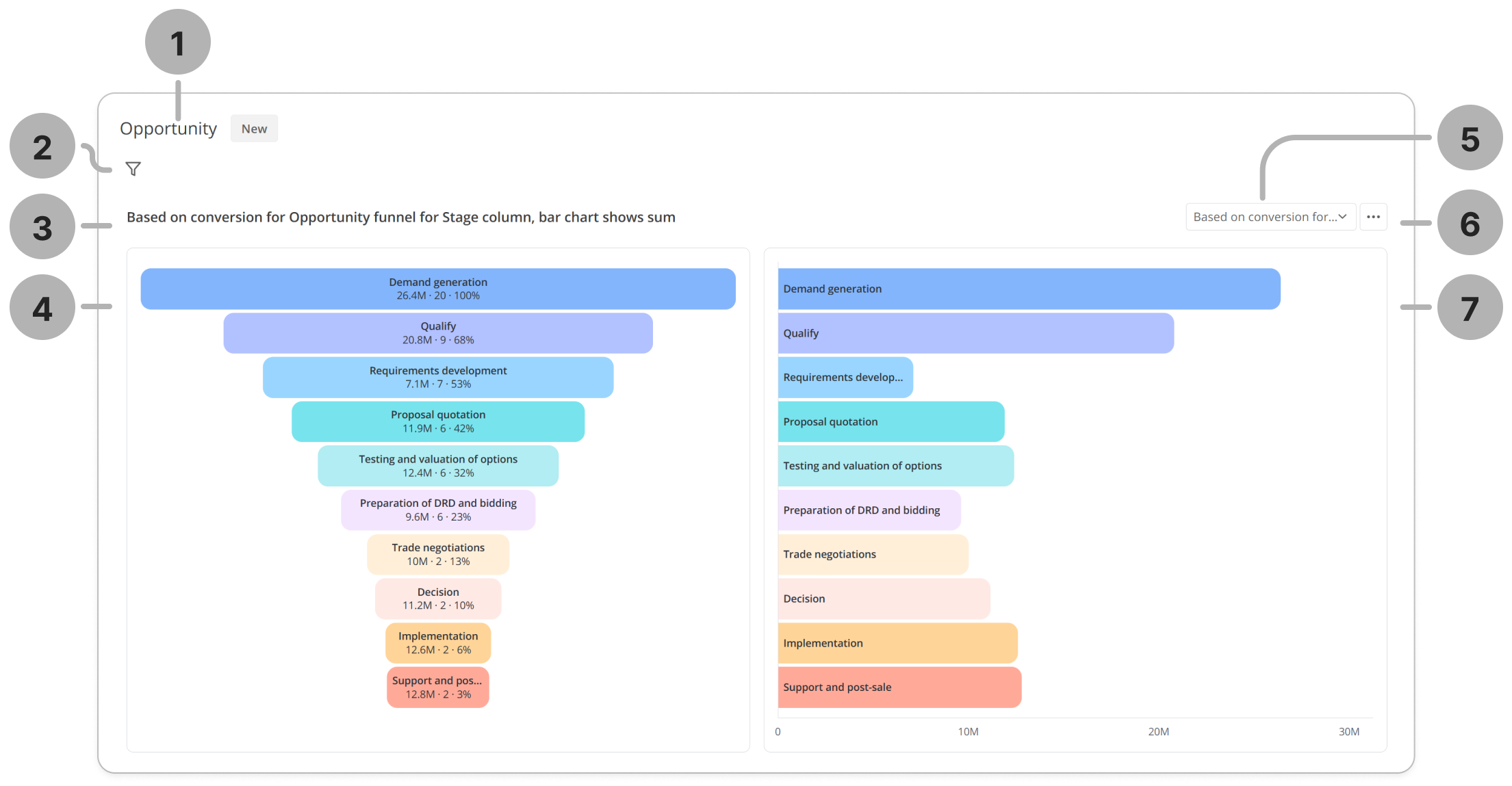
The funnel visuals may differ depending on its configuration. Here is an example of what a funnel may look like:
-
The table based on the records of which the funnel is created.
-
Click the icon to see the condition that must be met by the table's records to be included in the presentation. You can modify or clean the condition if necessary. If you update the condition, you will see a gray dot next to the funnel title in the drop-down list (element 5), and the icon. Click it to reset the configured condition to the latest saved funnel state. To save the new condition, use the toolbar (element 6).
noteIf you see the No data to display message, modify the funnel's condition or add records that meet it.
-
The funnel title, the state column on which the funnel stages are based, and the bar chart type if it is enabled.
-
The funnel. Depending on the value of the Funnel type field, each stage shows:
- Based on number of records: the number of records in which each option of the State field is selected,
- Based on conversion: the percent of conversion from the previous or first option of the State field.
Click a funnel stage to open the list interface filtered to show the records included in the stage.
Depending on the funnel configuration, each stage might show:

- Decision – the name of the state corresponding to the stage.
- 11.9 M – the sum for the records included in the stage. It is displayed if the Sum checkbox is selected.
- 4 – the number of records in this state. It is displayed if the Number of records checkbox is selected.
- 91% – the percent of conversion calculated according to the funnel settings. It is displayed if the Conversion percentage checkbox is selected.
Even if you disable the data displaying on the stages, you can move the pointer over a stage to view all available information. Some of this data may be absent if it is not available for your funnel:
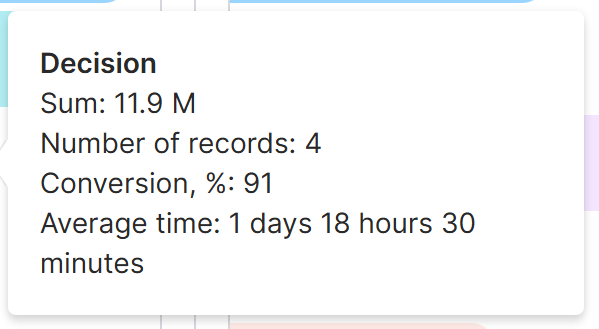
- Sum – displayed if the Sum by field is specified. The sum of values of the Sum by field for the records in this state.
- Number of records – always displayed. The number of records in this state.
- Conversion, % – displayed if the Funnel type is set to Based on conversion. The conversion percentage of this state to the previous/first state, depending on the value of the Conversion from previous state checkbox.
- Average time – shows average time records spend in this state according to the CRM State Change (crm_state_history) table.
-
The drop-down list of funnels configured for this table. Note that if you modify the funnel condition (element 2) and select another funnel in the drop-down list without saving the changes in the toolbar (element 6), the changes will be lost.
-
Click to open the toolbar. The list of possible actions:
- Save – click to update the condition of the selected funnel. The action appears if you modified the condition (element 2) and have access to editing the funnel.
- Save as new funnel – click to create a copy of the selected funnel with the currently configured condition.
- Open settings – click to open the funnel form.
-
Bar chart. Each row of the bar chart displays data for each state according to the parameter selected on the funnel form. On the screenshot, the rows display the number of records in each Customer centric stage. You can click each of them to open the list interface filtered to show the records included in the row. If you move the pointer over a row, you will see a tooltip with all the information available for the row, similar to the funnel stages.