Version 1.9.0
The B2B CRM version 1.9.0 includes important new features and improvements that extend the capabilities for data management in the application and improve user experience. For your convenience, we have created:
- The funnel data presentation where you can view the number of records in each state and conversion from the first/previous state.
- Universal record distribution mechanism between any entities.
- New fields on the Opportunity form, where financial values in the default currency are calculated automatically according to current exchange rates.
We have also started developing the infrastructure required for integration with 1C. Currently, two tables have been created. The logic required for the work of the integration will be provided in the future releases.
The application improvements include:
- Additions to the DaData integration: now, the company details can be received from both TIN and email, and the list of the data received has been significantly increased.
- Improvements meant to streamline and optimize the processes, such as new fields, UI actions, new logic for the fields and changes to the access control rules.
- The ability to select a nexus to be used for automatic content generation.
After the update package installation, you need to run the Change partner to agreement in lead script located at the {your instance URL}/record/sys_script/176493369113213667 address to complete the Partnership agreement field on the forms of Leads (crm_leads) in the New, Assigned, and Qualified states.
If you use the DaData or Ainergy integration, installing new version requires additional actions after the installation of the update package. Read more in the documentation.
New features
Funnels
We have created a new type of data presentation called Funnel. It is available for any table of any application. The funnel visually represents records of a table divided into stages according to their states. Each stage illustrates the conversion from the previous/first state or the number of records in each state, depending on the funnel configuration. It is also possible to enable a bar chart based on the selected parameter to make the funnel even more informative.
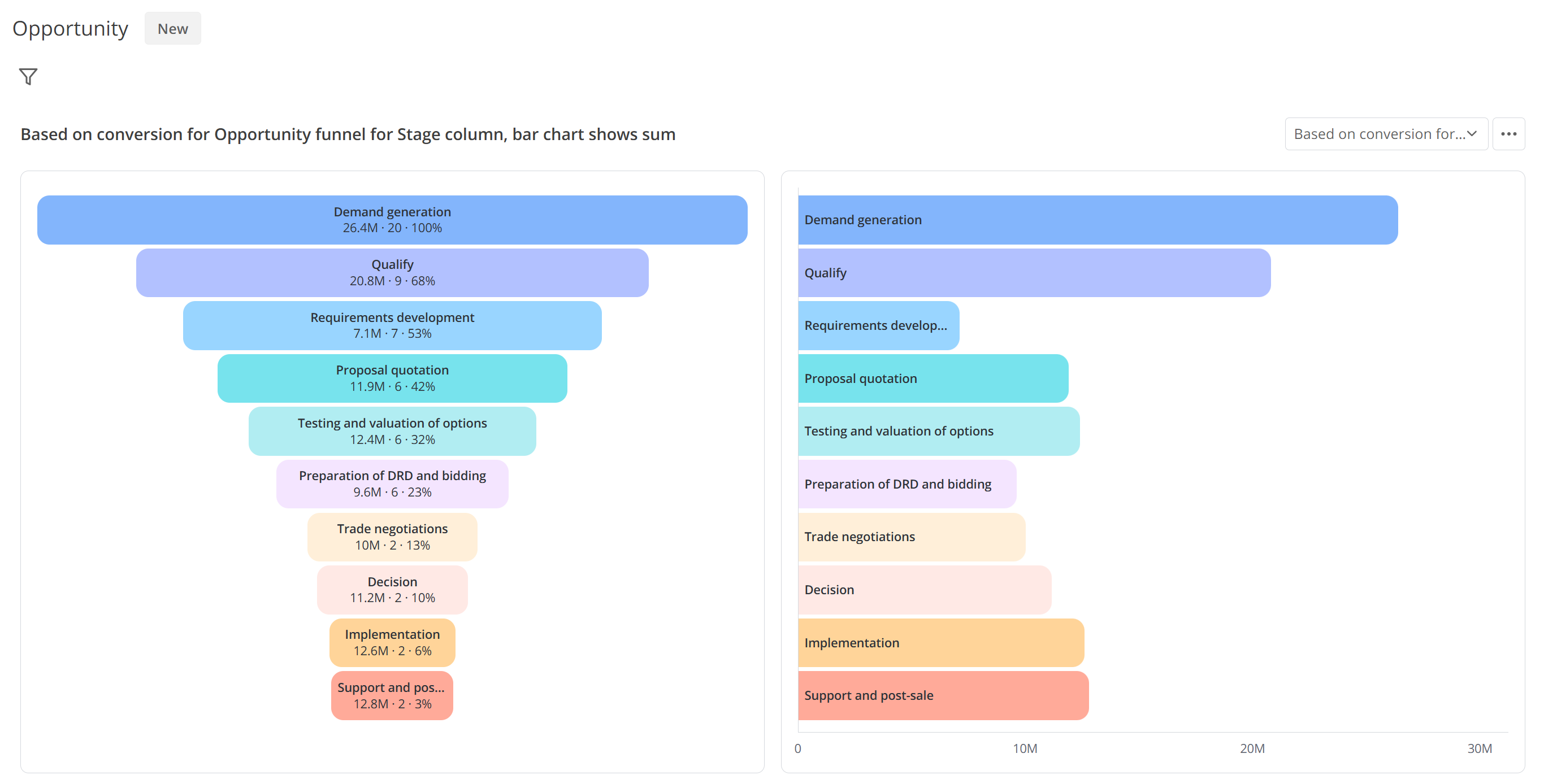
You can configure different funnels for a single table. Administrators can select the default funnel for each table that will be opened to the users who did not set a different funnel as preferred for the table.
Funnel configuration
A funnel can be created in a new navigator item CRM → Settings → Funnels. The funnels have a very flexible configuration that allows you to define such parameters, as:
-
Funnel type – specify the type of data to be displayed in the funnel stages: the number of records in the state or conversion from the first/previous state.
-
Sum by field – specify a column whose values need to be summed and displayed for the records included in stages.
-
Condition – specify the criteria for the table records to meet to be included in the funnel.
-
Bar chart – select the checkbox to display a bar chart in the funnel presentation, and then select the criteria on which the bar chart is based:
- Conversion percentage – the bar chart will be based on the conversion from the previous/first stage, depending on the value of the Conversion from previous state checkbox.
- Number of records – the bar chart rows will show the number of records in each state.
- Average time in state – the bar chart is based on the time each record remains in each state according to the CRM State Change (crm_state_history).
- Sum – the rows show the sum for each state according to the parameter specified in the Sum by field.
See the documentation for a complete list of settings.
Funnel use
The new data presentation can be opened with the Open funnel UI action available in the burger menu of the list interface of any table, or through a similar button on the funnel form. If a funnel is opened from the list interface, the condition configured in the moment is applied to it. It saves time so you can start working with relevant data immediately.
The information available at each stage of the funnel depends on its settings. Even if some data is hidden on a stage, a tooltip with detailed information appears when you move the pointer over it. Clicking a stage opens a list of its records in a new tab.
You can select another funnel via the dropdown in the upper-right corner. Use the toolbar to save the funnel, make a copy of it with the current condition, and open the funnel form for full configuration details.
If a bar chart is enabled for the funnel, the screen width is split equally between the funnel and bar chart. Moving the pointer over each bar also displays a tooltip with detailed data, and clicking on it opens a list of its records in a new tab.
Read more in the documentation.
Autocomplete rules
We have created a new Autocomplete Rule (crm_autocomplete_rule) table for you to configure rules for automatic completion of Reference type fields in records of any application's tables. The autocompletion occurs via a business rule that is automatically created from the autocomplete rule. This rule is applied only when a new record is added to the table for autocompletion.
You can select possible values for autocompletion as well as set its logic.
Available autocomplete types:
- Custom – to create a script for the value selection among records included in the secondary selection. Alternatively, you can specify a single record to be used as the autocomplete value.
- Load balancer – to add one record from those included in the secondary selection that is least frequently used as a value in the autocomplete table records.
- Round robin – to use the records included in the secondary selection as values in turns, one after another.
If you use an autocomplete rule to populate a field referencing the User (user) table or one of its child tables, the system checks if the employee selected as the value is currently present, and if they are absent, they are skipped, and the next employee is selected as the value, unless a different behavior is configured via a script when the Custom autocomplete type is selected.
Read more in the documentation.
Multi-currency accounting
Financial fields and metrics on the Opportunity (crm_opportunity) form are now split into two categories: the fields in the opportunity currency (were available in the previous version) and new fields in the currency specified in the currency.default system property. These new fields are hidden from the form by default.
The values in the default currency are calculated and updated automatically once a day according to the exchange rate between the opportunity Currency and the default currency. If you change the Currency or related financial field's value, the field with a value in the default currency is recalculated when you save the record. If there is no exchange rate between the specified currencies, the fields with values in the default currency are cleared upon saving. The list of such fields:
- Estimated revenue, default currency
- Estimated margin, default currency
- Estimated amount, default currency
- Margin, default currency
- Revenue, default currency
- Weighted revenue, default currency
- Weighted margin, default currency
Additionally, the crm.currency.default system property has been renamed to crm.opportunity.currency_default.
Read more:
Tables for integration with 1C
We have began preparing the infrastructure for an integration with 1C. Specifically, we have added new tables called Invoice (crm_invoice) and Invoice Payment (crm_invoice_payment).
Another update is that the Service/Product field on the Lead (crm_leads) form can now be completed only after you specify a Sales direction. The list of available service/product values is limited by those related to the specified direction.
Read more in the documentation.
Improvements
Additions to the DaData integration
We have developed a new DaData integration called DaData: Company by email. It automatically checks if a company with the specified email is present in the DaData service in case no company with the specified TIN is found. It can only be used simultaneously with the integration that defines the company by TIN.
We have also extended the list of data received through the integration. New fields have been added to the Customer Company (crm_customer_company) form in a separate tab called External Data. These new fields are populated automatically through the integration and include:
- CEO
- Revenue, mln
- Income, mln
- Expenses, mln
- Industries as per OKVED
- Address
- Number of branches
- Detailed company state
- Annual average headcount
- Domain
Apart from these new fields, some of the older fields are populated automatically as well:
- Full name
- Name
- Website
- Phone number
We have also improved the logic for creating a new company from the Partnership Application (crm_partnership_application) and Lead (crm_leads) forms. Now, when you save a record, the system checks if there is a company with the same TIN in the system and executes the corresponding logic:
| Possible scenario | The logic executed |
|---|---|
| A company record with such a TIN exists in the system | The Existing company field is automatically completed with the found company. |
| The system makes a request to the external service at the first saving. If there is a company with matching TIN or email (if the DaData: Company by email integration is active) in DaData, a new company record with the specified data is added, and the Existing company field is automatically completed with it. |
| The New company record is not created and the data remains unchanged. |
We have also improved the logic for creating a new contact from the Partnership Application (crm_partnership_application) and Lead (crm_leads) forms. Upon saving the record the system checks if there is a contact that has the same Last name and at least one of the following parameters:
- Contact email
- Contact phone number
| Possible scenario | The logic executed |
|---|---|
| A duplicate contact is found | The Existing contact field is completed with the contact found instead of creating a new record, and if the Company field of this contact is empty, it is completed with the customer company from the current partnership application/lead. |
| Several duplicate contacts are found | The contact with three matching parameters (last name, email, and phone number) s preferred for the completion of the Existing contact field. |
| No duplicate contact is found | A new contact record is added when the partnership application/lead is saved. |
We have also expanded access to editing the Responsible field on the Action (crm_action) form and the forms of its child tables. Now, users with any roles can edit the field, if they are:
- the responsible
- the responsible's manager
- the responsible's delegate
- the record creator
Read more:
Processes optimization
We have made the following improvements to the application table forms and their logic:
| Table | Improvements |
|---|---|
| Marketing Message (crm_marketing_message) | Now only users with the admin, crm_admin, crm_manager roles can add new records. |
| Partnership Application (crm_partnership_agreement) | New fields:
|
| Lead (crm_leads) | New UI action called Convert to partner has been added to the form burger menu . It is available in the New and Assigned states. When used, a partnership application in the Assigned state with the data from the lead, including the Responsible, is added, and the lead is deactivated. |
| Opportunity (crm_opportunity) | The Type of sale field has been replaced with the Opportunity type field with the following options:
|
| Action (crm_action) and its child tables | The access control rules have been simplified. |
Read more:
Connection between partnership applications and leads
Now the employees who have a partner company specified in their profile can read, edit, and leave comments to the leads in which a partnership agreement with their company is specified, regardless of their roles.
The Lead (crm_leads) form improvements:
| Field | New logic |
|---|---|
| Sales direction | When the value of this field changes, the following validations take place:
|
| Partner company | The field is now completed automatically with the value from the specified Partnership agreement and is read-only. |
| New field: Partnership agreement | If the Sales direction or Service/Product is specified, you can only specify an agreement for a program in which the values of the similar fields are the same as those specified in the lead. If the Sales direction is not specified, it will be selected automatically after you specify a partnership agreement. |
Read more in the documentation.
Nexus for content generation
In the new system property crm.ain.content_generation.nexus, you can specify the Name of a Chat type nexus to be used for content generation with Ainergy. If the property value is empty, the nexus specified in the Chat field of the Ainergy profile configuration widget is used.
Read more in the documentation.
Pre-sale task updates
We have made several improvements to creating and processing tasks for pre-sale specialists:
- Autocompletion of the Pre-sale field of the Opportunity (crm_opportunity) form: if this field is empty, but there is a task related to the opportunity and assigned to the Pre-sale group specified in the opportunity's sales direction, when the Responsible changes in such a task, the value of the Pre-sale field is updated as well to match the Responsible of the task.
- Automatic generation of task subject: when you click the Create task for pre-sale button on the Opportunity form, the subject of the created record is generated automatically according to the template: [Pre-sale] {Opportunity Name}.
- Autocompletion of the task start and end date: now when you click the Start work and Complete work buttons on the CRM Task (crm_task) form, the Actual start date and Actual end date fields correspondingly are populated automatically.
Read more:
Fixes
DEF0022783: We have fixed a problem that triggered error messages to appear in the Opportunity (crm_opportunity) form when a modal window that moves the record into the Won status was opened but the Currency field was empty. Currently, no errors appear in such a case.