Create an Announcement
You can create announcements in the agent interface. From the announcement form, you can also add any necessary translations. If applicable templates are available in the system, you can use them to create announcements.
Roles required: announcement_manager or admin.
To create an announcement, complete the steps below:
-
Navigate to Service Announcements → New Announcement.
-
(optional) Click Create from template to select an appropriate template and fill in the announcement form with its values.
-
Fill in the fields or edit the values as needed if the announcement was created from a template.
tipThe attachments added to the record will be available for download on the announcement page in the self-service portal.
-
Add announcement content, its translations, and relevant signatures in the Announcement body.
-
Click Save or Save and exit to apply the changes. The record will be saved in the Draft state.
-
(optional) If the workflow implies a mandatory approval, change the announcement state to Review and wait until it is completed.
-
Select the via Portal checkbox to only publish the announcement on the portal.
-
(optional) Select the via Email checkbox to send the announcement by email to all stated recipients.
-
Select the Published state and click Save or Save and exit to publish the article in the self-service portal and email it if the via Email checkbox has been selected.
Before you save an announcement in the Published state, ensure the via Email checkbox value is the one you need.
- You will not be able to stop the sending of emails after the record is saved in the Published state for the first time.
- An announcement is emailed only once – after the announcement record is saved in the Published state for the first time. If you save the record in the Published state with the checkbox cleared (the announcement is not emailed), the announcement will not be sent later if you select the checkbox and save the form again.
Announcement form fields
| Field | Mandatory | Description |
|---|---|---|
| Number | Y | The announcement number. This field is populated automatically and has the ANCMXXXXXXX format. It is always read-only. |
| Recipient emails | N | Specify the emails of the recipients of the announcement. You can enter multiple emails separated by commas. |
| Reviewer emails | N | Specify the emails of the reviewers of the announcement. You can enter multiple emails separated by commas. |
| Description | N | Add a short announcement description. It is not shown to the users of the service portal. |
| State | Y | The announcement state. Available options:
Only active announcements {state IS Published via AND Portal IS Yes} are displayed to the portal users. |
| Type | Y | Select the announcement type. Available options:
|
| Service | Y | Specify the related IT service. |
| via Email | N | Select this checkbox to send this announcement via email. It will be sent to all addresses specified in the Recipient emails field. |
| via Portal | N | Select this checkbox to display this announcement on the Self-Service Portal in the Portal Announcements area. |
Announcement body widget
Use the widget to create announcement content and add its translations into different languages.
- The language used for sending announcements and displaying them on the portal is the same and is defined in the announcement.language.source system property.
- If the Type field of an announcement does not have a translation into the required language, its English value is used.
To add an announcement content, complete the fields in the Announcement body widget.
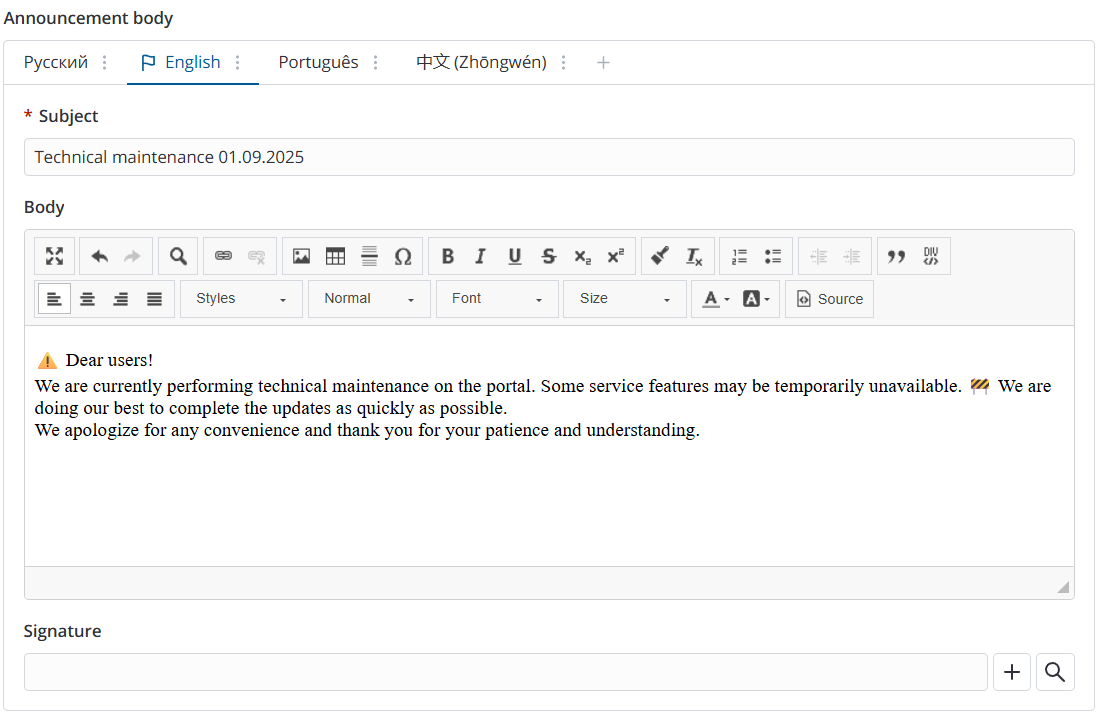
In the initial state, the widget contains a tab for the announcement text in the language specified in your user profile. The language name appears on the tab label.
You can specify a default language for the current announcement. This version is shown to users without a system account and to those whose interface or notification settings do not match any available translation. The default translation is marked with the
Each tab includes a
| UI action | Description |
|---|---|
| Add translation | Select to add a translation to another language. You can select any language from the Language (sys_language) table. |
| Change language | Select to change the translation language. Note that changing the language in the tab settings does not automatically translate its content. |
| Use by default | Select to use the announcement in this language as the default. For more information, see Default language. |
| Open in new tab | Select to open the translation record from the Announcement Localization (announcement_localization) table in a new tab. |
| Move right | Select to move the tab to the right within the widget. |
| Move left | Select to move the tab to the left within the widget. |
| Delete | Select to delete the announcement translation record. |
Announcement text widget fields
| Field | Mandatory | Description |
|---|---|---|
| Subject | Y | Enter the subject of the announcement. |
| Body | N | Enter the text of the announcement. Use the built-in editor to format the announcement body (including tables, media, lists, styles, and headings). |
| Signature | N | Add the text that will appear in the announcement signature. For more information, see Create announcement signature. |
Default language
If no translation records have been created yet, the language used in the original announcement is considered the default one. When you create translations, you can specify which one should be used as the default one.
The announcement in the default language will be sent to users by email and displayed on the portal if:
- the recipient specified in the mailing list does not have a user account in the system.
- the system does not contain a translation of the announcement in the language specified in the user’s Interface language or Notification language fields in their preference settings. The mailing language is determined in the announcement.language.source system property.