Knowledge Base
Roles required: admin, knowledge_admin.
The Knowledge Base (KB) enables you to build a library of articles in the Self-Service Portal (SSP) that provides necessary information for users: instructions, service descriptions, release notes, and other. Here, you can store articles for users with specific roles and public articles for any authorized user. Find all available articles, including known errors in the Knowledge Base section of the navigation menu, both on the portal and in the agent interface.
To categorize content across different levels and arrange articles in a hierarchy for easy navigation, you can configure the respective КB Directories. Access them via the navigation menu category of the same name. These directories are represented by five entities:
| Element | Table | Description |
|---|---|---|
| Content database (Content DB) | Content DB (content_db) | Create separate knowledge bases which, in turn, are arranged into several sets of articles. It is the most general and wide section of the KB. This element is not displayed on the SSP as it is used for internal categorization. |
| Content category | Content Category (content_category) | Provide an additional level of categorization for content items (articles, known errors). It stands for a more specific and narrow KB section in comparison with the content database. This element is not displayed on the SSP as it is used for internal categorization. |
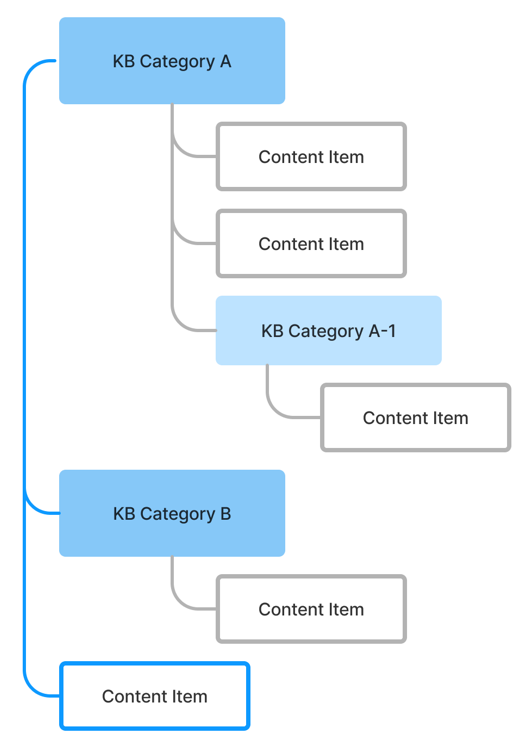
| Knowledge Base category (KB Category) | KB Category (knowledge_base_category) | Set the hierarchical order of articles and categories, which allows to nest articles and sort them. There are no limitations for nesting levels. This element defines the appearance of the KB on the SSP. A KB category is not equal to a content category: one KB category may contain articles with different content categories. Yet, in some cases, they can be closely connected to each other, which depends on the structure you build. |
| Content item class | Content Item Class (content_item_class) | Define classes of content items and access to them. It may be referred to as a subsection, yet it does not depend on any of the previous KB sections. That is, a content item class can contain items from any content database and any content category. This element defines what articles will be displayed to agents and users without roles. It also helps categorize KB items. |
| Content item (article) | Content Item (content_item) | Create a storage for such KB items as articles and known errors. The Self-Service Portal Knowledge Base only displays articles. Known errors are displayed in the Known Error Database, while other content elements are only available in the agent interface. |
Create a content database
Roles required:
- Create – admin, knowledge_admin, service_catalog_manager.
- Read – admin, knowledge_admin, cmdb_read; knowledge_agent if this user is responsible for, or is part of the group responsible for, the Content DB.
- Update – admin, knowledge_admin; knowledge_agent if this user is responsible for, or is part of the group responsible for, the Content DB.
- Delete – admin.
Content databases are designed to store knowledge base content items. The content database is the most general and wide section of the KB.
To create a content database, follow the steps below:
- Navigate to KB Dictionaries → Content DB.
- Click New and fill in the fields.
- Click Save or Save and exit to apply the changes.
Content DB form fields
| Field | Mandatory | Description |
|---|---|---|
| Name | Y | Specify a name for the content database appropriate for its purposes. |
| Description | Y | Add a description for the content database. |
| Responsible group | Y | Define the group responsible for the content database. |
| Responsible person | Y | Define the user responsible for the content database. |
Create a content category
Roles required:
- Create – admin, knowledge_admin, service_catalog_manager.
- Read – admin, knowledge_admin, cmdb_read; knowledge_agent if this user is responsible for, or is part of the group responsible for, the specified Content DB.
- Update – admin, knowledge_admin; knowledge_agent if this user is responsible for, or is part of the group responsible for, the specified Content DB.
- Delete – admin.
Content categories help arrange items in the content databases. They provide the addition of new article groups within one content database.
To create a content category, follow the steps below:
- Navigate to KB Dictionaries → Content Categories.
- Click New and fill in the fields.
- Click Save or Save and exit to apply the changes.
Content Category form fields
| Field | Mandatory | Description |
|---|---|---|
| Number | Y | This field is populated automatically and has the CCTG0000000 format. |
| Name | Y | Specify a name for the content category appropriate for its purposes. For example, Article for service SLAs and descriptions; Known Error for storing KEDB records. |
| Content DB | N | Select a content database from the list to bind the category with a previously created database. |
| Description | Y | Add a description for the content category. |
Create a Knowledge Base category
Roles required:
- Create – admin, knowledge_admin, knowledge_agent.
- Read – admin, cmdb_read, knowledge_admin; knowledge_agent if this user is responsible for, or is part of the group responsible for, the KB Category or its Content DB. Users with other roles can view records with the external Object category.
- Update – admin, knowledge_admin; knowledge_agent if this user is responsible for, or is part of the group responsible for, the KB Category or its Content DB.
- Delete – admin.
KB categories define a tree of articles on the SSP. Use categories to group articles.
To create a new KB category, follow the steps below:
- Navigate to KB Dictionaries → KB Categories.
- Click New and fill in the fields.
- Click Save or Save and exit to apply the changes.
KB Category form fields
| Field | Mandatory | Description |
|---|---|---|
| Number | Y | This field is populated automatically and has the KBC0000000 format. |
| Name | Y | Define the name for the category to be displayed in the portal Knowledge Base. |
| Content DB | N | Specify the content database to which the category is related. |
| Parent KB category | N | Specify the parent KB category to create a nesting category. |
| Responsible group | Y | Define the group responsible for the KB database. |
| Responsible person | Y | Define the user responsible for the KB database. |
| Content item class | Y | Specify the content item class related to this category. |
| Object category | Y | This field defines access to the category according to the content item class selected. If the content item class is external, the category will also be external. This field is populated automatically after specifying the Content item class field value. Available options:
|
| Description | Y | Add a description for the category and articles it contains. |
Create a content item class
Roles required:
- Create – admin, knowledge_admin.
- Read – admin, knowledge_admin, cmdb_read.
- Update – admin, knowledge_admin.
- Delete – admin.
The content item class defines the content item purpose and the application area:
- External – articles intended for business users, for example, external service specifications.
- Internal – articles intended for internal use by agents. For example, these are internal specifications available to agents responsible for task handling.
- Configure content item class records in a developer instance. After the necessary configurations are applied, create a configuration package to transfer the content item class to the main, production instance.
- Versions of the content item class are stored in the VCS Records (sys_vcs_record) table used for storing access settings. You can implement changes to other instances using the configuration packages.
To create an item class, follow the steps below:
- Navigate to KB Dictionaries → Content Item Class.
- Click New and fill in the fields.
- Click Save or Save and exit to apply the changes.
Content Item Class form fields
| Field | Mandatory | Description |
|---|---|---|
| Name | Y | Define the name for the category to be displayed in the portal Knowledge Base. |
| Description | Y | Add a description for the content item class. |
| Object category | N | Specify the object category. Available options:
|
Create a content item
By default, content items are articles, which constitute the Knowledge Base, and known errors, which constitute the Known Error Database.
To create articles, use the Article (article) table.The Content Item (content_item) table is read-only, because it serves as a storage for articles and known errors.
Before creating KB content items, ensure you have configured content databases and content item classes.
For the known error workflow, refer to the Known Error Database (KEDB) article.
The article form has the Activity Feed displaying the History of changes made to the article, as well as its Work notes (Comments in the Article editor).
Portal integration
The integration of the Knowledge Base into the portal should be understood as the availability of a certain database and its articles within the framework of the "out-of-the-box" service portal. The knowledge base is available on the portal in the following format:
- pages with categories and articles. See Knowledge Base Categories and Knowledge Base Articles.
- search and a group of results that include the articles found. See the System Search article.