CI Relationships
Role required: cmdb_admin, cmdb_manager, admin.
A CI Relationship (sys_cmdb_relationship) describes a connection between two configuration items by determining the attributes of their relationship. CI relationships are represented with single-directional and bi-directional arrows connecting CIs on the dependency map.
You can determine an impact direction of CI relationships when specifying the Source CI and Recipient CI. According to the established relationship, if any of the source CIs degrades or becomes unavailable, the recipient CI is affected.
Once relationships are configured, you can open the dependency map to see CI relationships. The map displays CIs based on their classes or types. For more specific views, you can customize the dependency map's layout.
Create a CI relationship
To establish a new CI relationship, complete the following steps:
- Navigate to CMDB → CI Relationships.
- Click New and fill in the form.
- Click Save or Save and exit to apply the changes.
CI Relationship form fields
| Field | Mandatory | Description |
|---|---|---|
| Source CI | Y | Specify a CI from the list to make a relationship outcoming from it. If you clear this field, the Recipient CI will be cleared as well. |
| Recipient CI | Y | Specify a CI from the list to specify a relationship as incoming. The field is displayed after you specify the Source CI. If you clear this field, the CI relationship type will be cleared as well. If the simple.ci.dependency_map.display_mode system property is set to class, in this field you can only select from the CIs of the same class as the Source CI, or of the classes that according to the CI relationship rules can be the Recipient class for the source CI's class. A pair Source CI – Recipient CI must be unique. You can create only one relationship between two specific CIs. |
| Bilateral relation | N | Select the checkbox so both source and recipient CIs have impact on each other. |
| Operational state transfer type | N | Select one of the possible values describing the type of operational impact:
|
| Relationship weight | N | An automatically calculated decimal number, equal to or less than 1. It defines a CI Relationship impact. |
| Weight on change | N | An automatically calculated decimal number, equal to or less than 1. It defines the CI Relationship actual weight depending on the Operational state change. If the source CI is not available, the CI Relationship carries the 0 value within the Weight on change field. If the source CI is degraded, the relationship transfers a half weight. Thus, the weight of conditional relationship or the sum weight of unconditional relationship provides the operational state of a recipient CI with the following value:
|
| Connector label | N | Specify a label to be displayed on the dependency map when the pointer moves over the relationship. |
| CI relationship type | Y | Specify the type of relationship that describes the connection between the two CIs. The specified value will define the connector line color and type on the dependency map. The field is displayed after you specify the recipient CI. If the simple.ci.dependency_map.display_mode system property is set to class, the available values in this field are defined by the relationship types specified in the CI relationship rule configured between the source and recipient CI's classes. |
If the simple.ci.dependency_map.display_mode system property is set to class, the system prohibits circular connections between CIs. Example:
- The following CIs exist in the system: CI 1, CI 2, and CI 3.
- A CI relationship record is added, in which the CI 1 is the Source CI, and the CI 2 is the Recipient CI.
- A CI relationship record is added, in which the CI 2 is the Source CI, and the CI 3 is the Recipient CI.
- When you try to add a CI relationship record in which the CI 3 is specified as the Source CI, and the CI 1 is specified as the Recipient CI, you will not be able to save the record since it would create a cycle.
CI relationship types
Role required: admin, cmdb_admin. Users with the cmdb_read role can only read the table's records.
Add records to the CI Relationship Type (sys_cmdb_ci_relationship_rule) table to specify the possible types of relationships between the CIs. You can select records of this table on the CI Relationship and CI Relationship Rule forms in the CI relationship type field.
To add a CI relationship type, complete the following steps:
- Navigate to CMDB → CI Relationship Types.
- Click New and fill in the form.
- Click Save or Save and exit to apply the changes.
CI Relationship Type form fields
| Field | Mandatory | Description |
|---|---|---|
| Name | Y | Specify the name of the CI relationship type. It must be unique. |
| Active | N | Select the checkbox to make the relationship type active. |
| Line type | Y | Select the line type to be displayed on the CI dependency map for a relationship of this type. Available options:
|
| Unlabeled line color | N | Specify the line color in the HEX format to be displayed for this relationship type on the dependency map if the connector label is not specified. Default value: #2E3238. |
| Labeled line color | N | Specify the line color in the HEX format to be displayed for this relationship type on the dependency map if the connector label is specified. Default value: #66BFFF. |
| Labeled line highlight color | N | Specify the line color in the HEX format to be displayed for this relationship type on the dependency map if the connector label is specified and the user moves the pointer over the connector. Default value: #0078CF. |
Configuration item dependency map
The CI dependency map is a service model represented by a hierarchical structure of the CIs. The CI dependency map visualizes CI relationships with unidirectional or bidirectional arrows depending on an impact direction and with color-coded frames denoting the CI current operational state.
Hierarchical levels are determined by the CI types or CMDB classes, depending on the simple.ci.dependency_map.display_mode system property value. You can also create custom configuration through the getCustomDependencyMapData script.
- If the property value is type, creating a new CI Type results in adding the next lower level to the model.
- If the property value is class, creating a new CMDB Class may result in adding a new lower level to a model that includes this class.
- If the property value is custom, the dependecy map is built based on the getCustomDependencyMapData script include available at the
{your instance URL\}/record/sys_script_include/174792342812873874address. With this script, you can define a criterion for the differentiation of levels on the dependency map, as well as other settings of the map.
Inactive and New CIs and relationships with them are not displayed on the dependency map.
There are two ways to open a CI dependency map:
- Click next to the Source CI or the Recipient CI field on the CI Relationship form to see the hierarchical place of your CI on the map.
- Navigate to CMDB → Service Model and in the URL
https://instance.example.com/visual/dependency?sys_id=XXXXXXXXXXXXXXXXX&essence=sys_cmdb_ci&script=CI, replace the X's with the CI's ID.
Correlation of color-coded frames and CI operational states
| Frame color | Operational state |
|---|---|
| Green | Available |
| Yellow | Degraded |
| Red | Unavailable, Maintenance |
The arrows with a label specified are blue on the map. Move the pointer over an arrow to see the Connector label. Arrows with no label are black.
You can drag the CIs on the dependency map by right-clicking and holding a CI on the map. This will help you arrange complex maps. The maps returns to its initial state when the page is refreshed.
Configure the CI operational states colors
You can change the colors assigned to the CI operational states on the depednecy map by changing the getNodeColor script include located at the \{your instance URL\}/record/sys_script_include/174860835712745495 address.
Correlation of operational states in the script
| Operational states | Designation in the script |
|---|---|
| Available | 0 |
| Unavailable | 1 |
| Degraded | 2 |
| Maintenance | 3 |
You can configure the color rules for custom operational states in this script. To achieve this, in the script specify the Value of the new operational state option with its color.
Available colors
- red
- orange
- blue
- green
- gray
The colors are specified as a string. If you specify another value, the CI frame becomes black on the dependency map.
Create a CI relationship from the dependency map
To add a new CI Relationship from the Dependency Map view, follow the steps below:
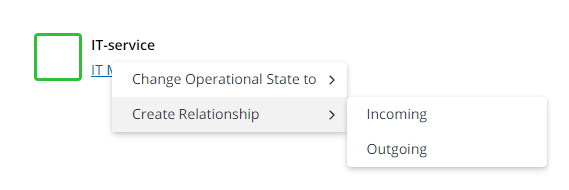
- Right-click the required CI and click Create relationship in the context menu.
- Select one of the options:
- Incoming – to create an incoming connection to your CI
- Outgoing – to create an outgoing connection from your CI.
- Fill in the form.
- Click Save or Save and exit to apply the changes.
Change the CI operational state
To change a CI Relationship operational state from the Dependency Map view, complete the steps below:
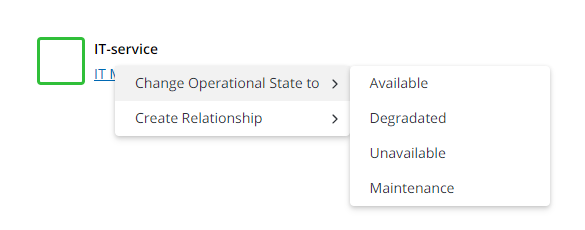
- Right-click the required CI and click Change operational state to in the context menu.
- Select one of the CI operational states. For more information, see Configuration Management Database.
Configure CI dependency map based on classes
Role required: admin, cmdb_admin. Users with the cmdb_read role can only read the table's records.
Add records to the CI Relationship Rule (sys_cmdb_ci_relationship_rule) table to define the relationships between different CI classes, if you use this criteria for the dependency map.
A rule is applied to all CI Relationship records created for the CIs of the specified classes, if the value of the simple.ci.dependency_map.display_mode system property is set to class.
If you use class as the criterion, the level of a configuration item on the dependency map depends on its position in a relationship: the Source CI is always higher than the Recipient CI. If the relationship is bilateral, the CIs are located on the same level.
Create a CI relationship rule
To create a CI relationship rule, complete the following steps:
- Navigate to CMDB → CI Relationship Rules.
- Click New and fill in the form.
- Click Save or Save and exit to apply the changes.
CI Relationship Rule form fields
| Field | Mandatory | Description |
|---|---|---|
| Source class | Y | Specify the CI class that, within the context of a given relationship, occupies a superior (parent, generalizing) position. If you clear this field, the Recipient class is cleared as well. The field becomes read-only after the first saving of the record. |
| Recipient class | Y | Specify the CI class that, within the context of a given relationship, occupies a subordinate position. The field is displayed after you specify the Source class. You cannot specify the same source and recipient classes. If you clear the recipient class, the CI relationship type field is cleared as well. A CI relationship rule must be unique: you can only add one rule for a relationship between two specific classes. The field becomes read-only after the first saving of the record. |
| CI relationship type | Y | Specify the types of relationships that describe the possible connections between the two classes. The values of this field define the available values of the CI relationship type field on the CI Relationship form. The field is displayed after you specify the recipient class. The CI relationship types available by default:
|
| Active | N | Select the checkbox to make the rule active. An active rule can be used for the creation of CI relationships. |
- If you delete a CI relationship rule record, the relationships created based on it will remain in the system, but you will not be able to create the new ones unless you re-create the rule for the same classes.
- If you change the class of a CI included in a relationship to a class that does not have a rule configured with the class of the other CI included in this relationship, such a relationship will remain in the system.
Configure CI dependency map based on types
If the value of the simple.ci.dependency_map.display_mode system property is set to type, the position of a configuration item on the dependency map is determined by records of the CI Position (sys_cmdb_ci_position) table. Use this table to configure the location of the CIs on the dependency map by changing the value of the Order field.
A CI position is assigned to a CI Type (cmdb_class_type) and is applied to all configuration items that belong to that type.
Create a CI Type
To create a CI type, complete the following steps:
- Navigate to CMDB → CI Types.
- Click New and specify the type Name.
- Click Save or Save and exit to apply the changes.
After saving the CI type, a related CI position will automatically be added. Each type may only have one related position.
Configure a CI Position
To create a new CI Position, complete the following steps:
- Navigate to CMDB → CI Types.
- From the list, select the CI Type the required CI belongs to.
- In the Related Lists area, select the CI Positions tab and open the position's form. Edit the values of the required fields.
- Click Save or Save and exit to apply the changes.
CI Position form fields
| Field | Mandatory | Description |
|---|---|---|
| CI type | N | The CI Type this CI position is assigned to. Only one position can be created for each CI type. |
| Order | N | Set the vertical position of the CI on the dependency map. The higher this value, the lower the CI is displayed on the dependency map. At the automatic creation of the record, the default value of the field is calculated according to the formula: The highest value among existing CI positions + 150. |
| Icon | N | Set the icon that represents the CI on the dependency map when the simple.ci.dependency_map.display_mode system property is set to type. If the field is empty, the CI is represented on the dependency map by an empty frame. Available icon options:
|