Position Slot
Create position slots to plan the number of employees recruited to a position, and the salary range for each of them.
Main information about the position slots registered in the system is stored in the Position Slot (hrm_position_slot) table of the agent interface.
Access to the position slot
| Operation | Role required |
|---|---|
| Read |
|
| Create |
|
| Update |
|
| Delete | hrm_admin |
Create a position slot
To create a position slot, follow one of the paths below:
| Path | Steps |
|---|---|
| Via the Position Slots list |
|
| Via the Position form |
|
Position Slot form fields
| Field | Mandatory | Description |
|---|---|---|
| Position | Y | Specify the position to which the slot is related. |
| Hiring horizon | N | Specify the planning horizon for hiring an employee to fill this position slot. The field becomes available for editing as soon as the budget owner approves the position slot. The field is cleared if the specified employment contract enters the Archived status. |
| Job post | N | Specify the job post for the position to which the slot is related. The field is available for editing after the approval of the position slot by the budget owner. The field is cleared if the specified employment contract enters the Archived status. |
| Employment contract | N | Specify the employment contract concluded with the new hire who has filled in the position slot. The field becomes available for editing as soon as the budget owner approves the position slot. The field is cleared if the specified employment contract enters the Archived status. |
| Start date | N | Specify the recruitment start date. |
| End date | N | Specify the recruitment end date. |
| Select salary type | Y | Select a salary type. Available options:
|
| Minimum net salary | N | Specify the minimum net salary. The field is available for editing if the Net option is selected in the Select salary type field. The value is calculated automatically if the Minimum gross salary is specified. |
| Maximum net salary | N | Specify the maximum net salary. The field is available for editing if the Net option is selected in the Select salary type field. The value is calculated automatically if the Maximum gross salary is specified. |
| Minimum gross salary | N | Specify the minimum gross salary. The field is available for editing if the Gross option is selected in the Select salary type field. The value is calculated automatically if the Minimum net salary is specified. |
| Maximum gross salary | N | Specify the maximum gross salary. The field is available for editing if the Gross option is selected in the Select salary type field. The value is calculated automatically if the Maximum net salary is specified. |
Related lists
Approvals – the list of approval requests that displays their states and the approvers' names.
Position slot control
You can control a position slot with the buttons on its form. To do so, navigate to Human Resource Management → Recruitment Planning → Position Slots and open the required record form.
| UI action | Description | Role required |
|---|---|---|
| Send for approval | Click to send a New position slot for approval. The employees who are budget owners (hrm_budget_owner) in the company where the position slot is available will receive corresponding approval requests. |
|
| Approve | Click to approve the position slot. | hrm_budget_owner |
| Reject | Click to reject the position slot. | hrm_budget_owner |
| Edit | Click to edit the form fields. The position slot transitions from the Rejected to the New state. Another approval is required after saving an edited position slot. |
|
| Archive | Click to archive the position slot. |
|
| Delete | Click to delete the position slot. The button is located in the burger menu in the upper-left corner of the form. | hrm_admin |
Create a copy
You can create a position slot copy. To do so, in the burger menu , click Make a copy.
The system will then forward you to the newly created copy with the following differences from the original:
- the state of the copy is New,
- the fields Hiring horizon, Job post, and Employment contract are empty,
- the fields Hiring horizon and Job post are read-only.
Position slot state model
The Position Slot state model is illustrated by the diagram below.
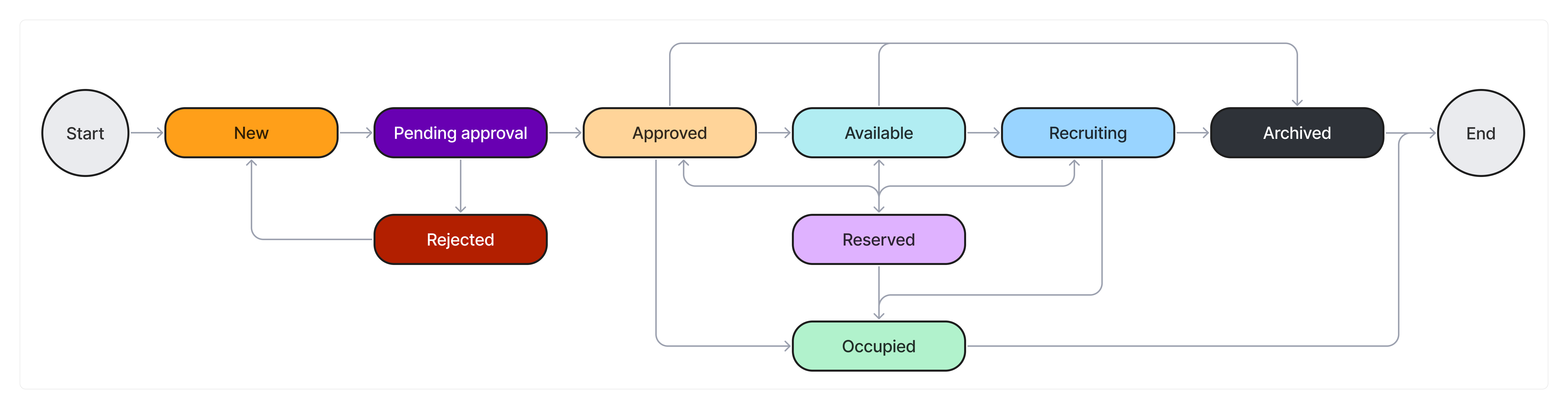
State description
| State | Description |
|---|---|
| New | A position slot takes this state at the first saving. Available transitions:
|
| Pending approval | A position slot enters this state after clicking Send for approval on its form. Available transitions:
|
| Approved | The state is set in the following cases:
|
| Rejected | A position slot enters this state after clicking Reject on its form. Rejected position slots should either be canceled or edited. Available transitions:
|
| Available | A position slot enters this state after specifying the recruitment horizon. A position slot also returns to this state from the Reserved state if an already completed related Onboarding request is closed with a Not solved result. A position slot enters this state if an already completed related Dismissal request is closed with the Solved result. Available transitions:
|
| Recruiting | A position slot enters this state after a related vacancy is taken to work. A position slot returns to this state from the Reserved state if an already completed related Onboarding request is closed with a Not solved result. Available transitions:
|
| Reserved | A position slot enters this state when the following requests are created: Available transitions:
|
| Occupied | A position slot enters this state after a related recruitment request is closed. Available transitions:
|
| Archived | A position slot enters this final state after clicking Archive on its form. |