Absence Request
Service portal users can submit an absence request through the service portal, for example, due to medical reasons or for business trip purposes. The request will be processed by the company's HR department. In their portal cabinet, the users can monitor the processing of their request and communicate with the employee assigned to it.
The information about all absence requests is stored in the HRM Request (hrm_request) table.
Roles required:
- Create, read their own requests – all users with access to the HR category of the Service Catalog.
- Update – hrm_agent.
- Delete – hrm_admin.
Create an absence request
To create an absence request, complete the following steps:
- Navigate to Portal main page → Service Catalog → HR.
- Click Plan an absence and fill in the fields.
- Click Send.
When the form is saved, the system redirects you to the confirmation page:
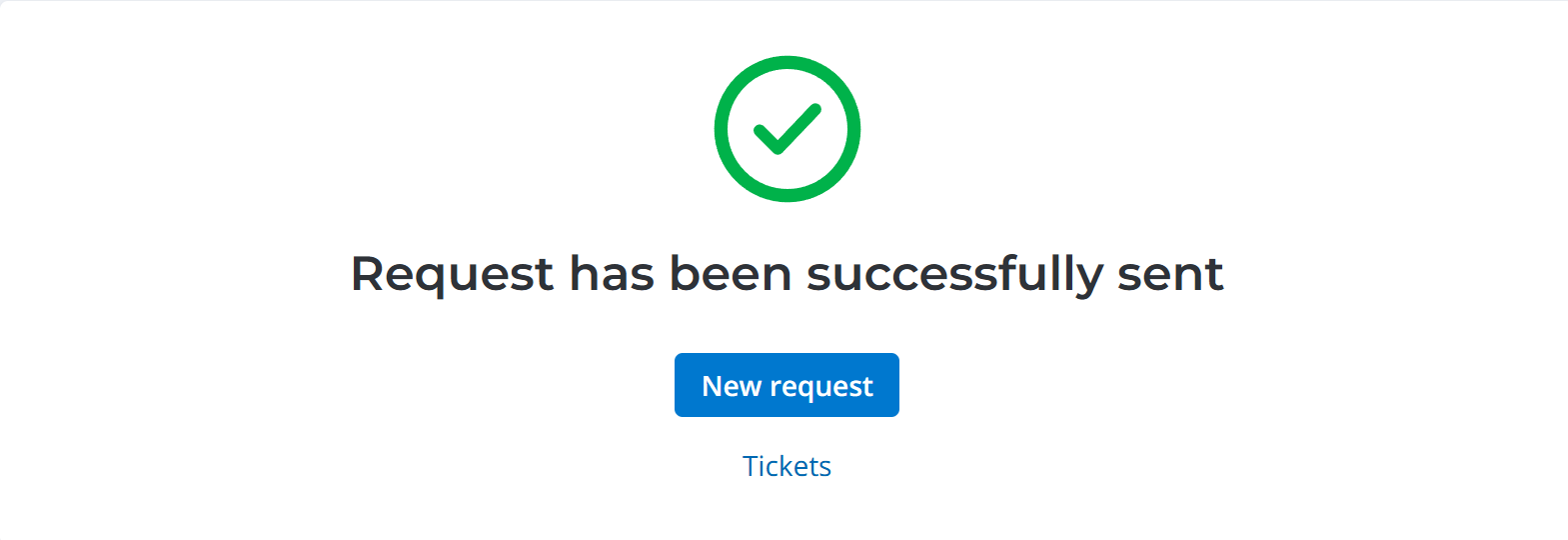
From this page, you can create another request. To do so, click New request.
You can also open your service request list by clicking Tickets.
Absence Request form fields
| Field | Mandatory | Description |
|---|---|---|
| Type of absence | Y | Select a type of absence. Available options:
|
| Urgency | N | Select an urgency level. Available options:
|
| Delegate | N | Specify your delegate for the absence period. |
| Description | Y/N | Add a description. The field is mandatory if the selected type of absence is Business trip. |
| Available vacation duration | N | The field is visible if the selected type of absence is Day off or Vacation and is filled in automatically with the available number of days. |
| Start date and time | Y | Specify the date and time when the absence starts. By default, tomorrow's date is specified. |
| End date and time | Y | Specify the date and time when the absence ends. By default, tomorrow's date is specified. |
| Absence duration | N | The field is filled in automatically. |
| On account of paid leave | N | Select the checkbox if you are planning to use available vacation days for the days off. The field is visible if the selected type of absence is Day off. |
| City | Y | Select the destination city. To do so, click the magnifier to open the dictionary. The field is visible if the selected type of absence is Business trip and hidden if the City not found checkbox is selected. |
| City not found | Y | Select the checkbox if the necessary city is not found in the dictionary. The field is visible if the selected type of absence is Business trip. |
| City name | Y | Specify the destination city name. The field is visible if the City not found checkbox is selected. |
| Country name | Y | Specify the destination country name. The field is visible if the City not found checkbox is selected. |
| Name of organization | Y | Specify the name of the organization you are planning to visit. The field is visible if the selected type of absence is Business trip. |
| Purpose of the trip | Y | Specify the purpose of your business trip. The field is visible if the selected type of absence is Business trip. |
Use the attachment window to upload files related to the record. To add your files, drag and drop them into the attachment window, or click Upload from computer and add files via the file manager.
View and edit a request on the portal
You can see approved absences on the portal. Read more about the viewing and navigation in the absence schedule in the Absence Schedule article.
To edit an approved absence request, complete the following steps:
- On the portal, navigate to Activities → Organizational Unit Absence Schedule or Company Absence Schedule.
- In the widget, find the period that needs to be modified and click it.
- In the Absence information section, click Edit dates and specify new dates in the Start and End fields.
- Click Send for approval.
View a request in the agent interface
The list of absence requests is available to agent interface users with the required roles. They can view the requests in one of the following ways:
| Path | Steps |
|---|---|
| Via HR Task Management |
|
| Via Absences and Vacations |
|
Control a request in the agent interface
Agent interface users can process an absence request using the UI actions described in the table below:
| UI action | Description | Roles required |
|---|---|---|
| Assign to me | Click to assign the request to yourself. The request enters the Assigned state, and the Assigned user field is completed with the name of the current user. The button appears on the forms of Approved requests assigned to a group. |
|
| Reassign | Click to reassign the request to another group or user. Fill in all the required fields in the modal window that opens and click Reassign. The button appears on the request forms in all states except Closed. |
|
| Start work | Click to start working on the request. The request enters the In progress state. The button appears on the forms of Assigned requests. |
|
| Request more info | Click to request additional information. The button appears on the form of requests in the In progress state. |
|
| Complete | Click to complete your work. The button appears on the forms in the Information needed or In progress state. Fill in all the required fields in the modal window that opens. Available options for the Result field:
|
|
| Delete | Click to delete the request The button appears on the forms of requests in any state. | hrm_admin |
Tickets
You can find the list of all your requests on the Tickets page. Visit the page any time to monitor the state of all your requests. To do this, go to Activities → Tickets in the header of the portal.