Dismissal Request
Service portal users can submit a dismissal request for themselves in accordance with the dismissal request template of the company, or they can terminate an employment contract with a subordinate employee. The request will be processed by the company's HR department. In their portal cabinet, the users can monitor the processing of their request and communicate with the employee assigned to it.
The information about all dismissal requests is stored in the HRM Request (hrm_request) table.
Create a dismissal request template
Roles required:
- Read, create, update – hrm_admin.
Prepare a dismissal request template in the .docx format and put tags inside the document. The tags will automatically be replaced with the relevant data.
| Tag | Description |
|---|---|
| FULLLASTNAME | Full second name |
| FULLFIRSTNAME | Full first name |
| FULLMIDDLENAME | Full middle name |
| SHORTLASTNAME | Second name initials |
| SHORTFIRSTNAME | First name initials |
| SHORTMIDDLENAME | Middle name initials |
| DATETODAYSHORT | Current date in the dd.mm.yyyy format |
| DATETODAYLONG | Current date in the dd month yyyy format |
| DATEDISIMISSALSHORT | Dismissal date in the dd.mm.yyyy format |
| DATEDISIMISSALLONG | Dismissal date in the dd month yyyy format |
Proceed by the link to download an example of a dismissal request template.
To create a dismissal request template record and attach the DOCX file to it, complete the following steps:
- In the agent interface, navigate to Human Resource Management → Registers → Company Documents.
- Click New and fill in the mandatory fields.
- Click Upload from your device and select the prepared DOCX file.
- Click Save to apply the changes.
- Click Copy link and paste it to the Link field.
- Click Save or Save and exit to apply the changes.
Create a dismissal request
Roles required:
- Create, read their requests – all users with access to the HR category of the service catalog.
- Update – hrm_agent.
- Delete – hrm_admin.
To create a dismissal request, complete the following steps:
- Navigate to Portal main page → Service catalog → HR.
- Click Resign or terminate an employee and fill in the form fields.
- (optional) In case you create a dismissal request for yourself, attach your dismissal request. You can download the completed template used in your company by clicking Download application.
- Click Send.
When the form is saved, the system redirects you to the confirmation page:
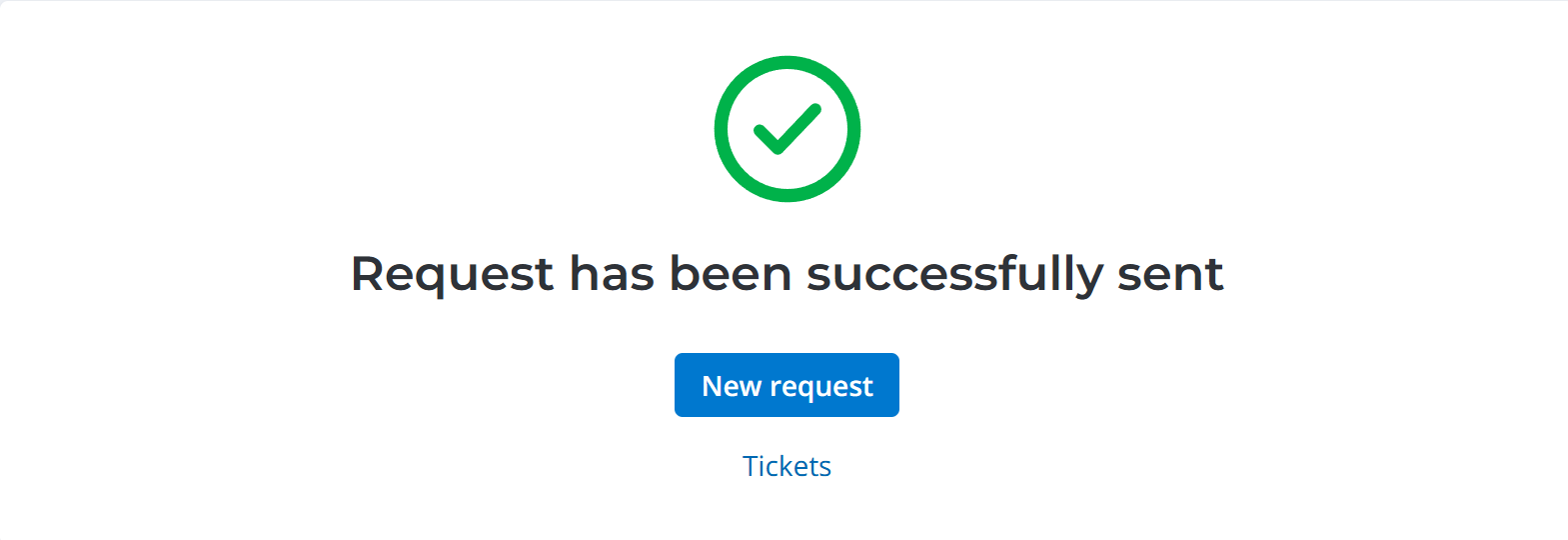
From this page, you can create another request. To do so, click New request.
To open your service request list, click Tickets.
Resign or Terminate an Employee form fields
| Field | Mandatory | Description |
|---|---|---|
| Employee | Y | Specify yourself or a subordinate employee that needs to be dismissed. |
| Dismissal date | Y | Specify the date of the final work day for the employee. |
| Application template | N | The field is completed automatically with the link to the corporate dismissal request template after the completion of the Employee and Dismissal date fields. |
| Description | N | Specify additional information. |
Use the attachment window to upload files related to the record. To add your files, drag and drop them into the attachment window or click Upload from computer and add files via the file manager.
View a request in the agent interface
The list of dismissal requests is available to agent interface users with the required roles. They can view the requests in one of the following ways:
| Path | Steps |
|---|---|
| Via HR Task Management |
|
| Via Onboarding and Dismissal |
|
Control dismissal request
Agent interface users can process a dismissal request using the UI actions described in the table below:
| UI action | Description | Roles required |
|---|---|---|
| Assign to me | Click to assign the request to yourself. The request enters the Assigned state, and the Assigned user field is completed with the name of the current user. The button appears on the forms of Approved requests assigned to a group. |
|
| Reassign | Click to reassign the request to another group or user. Fill in all the required fields in the modal window that opens and click Reassign. The button appears on the request forms in all states except Closed. |
|
| Postpone | Click to start working on the request later. The button appears on the forms of Assigned request or those In progress. |
|
| Start work | Click to start working on the request. The request enters the In progress state. The button appears on the forms of Assigned and Postponed requests. |
|
| Request more info | Click to request additional information. The button appears on the form of requests in the In progress state. |
|
| Complete | Click to complete your work. The button appears on the forms in the Information needed or In progress state. Fill in all the required fields in the modal window that opens. Available options for the Result field:
|
|
| Delete | Click to delete the request. The button appears in the burger menu on the forms of requests in any state. | hrm_admin |
Tickets
You can find the list of all your requests on the Tickets page. Visit the page any time to monitor the state of all your requests. To do this, go to Activities → Tickets in the header of the portal.