HR Form Launch
A form must be launched for a respondent to receive their personal form instance for completion. Forms can be launched by agent interface users with special HRM roles.
Only the forms that are in the Available for launching or Launched state can be sent to respondents.
Main information about the form launches registered in the system is available in the agent interface and stored in the Form Launch (hrm_form_launch) table.
Roles required:
- Create, read – hrm_supervisor, hrm_form_launch_manager, hrm_admin.
- Update – hrm_form_launch_manager, hrm_admin.
- Delete – hrm_admin.
Create a launch
Only HR forms with the Available on portal checkbox selected and in the Launched or Available for launching state can be launched on the portal.
To launch a form launch, complete the following steps:
- On the portal, go to Main page → Forms and Surveys → Forms.
- Open the necessary form and click Launch in the Form info widget.
- Fill in the required fields in the modal window that opens and click Launch.
When the form is launched, the system redirects you to the launch confirmation page. From this page, you can open the newly created launch. To do so, click Open launch. Another option is to go to the list of all forms. To do so, click All forms.
Read about launching an HR form via the agent interface in the Agent Interface – HR Form Launch article.
HR Form Launch fields
| Field | Mandatory | Description |
|---|---|---|
| State | Y | Possible values:
|
| Launch title | N | Specify the launch title. |
| Form | Y | Specify the form that needs launching. |
| Launch now | N | The checkbox is selected automatically if the launch was created immediately after saving the launch record. A clear checkbox means the launch was scheduled for a later time. |
| Start date and time | Y | The field displays the date and time when the launch started. The field is completed automatically. |
| Time limit | N | The field displays the deadline for submitting completed form instances. |
| Respondent selections | Y/N | Specify an employee selection to make a list of respondents according to certain conditions. The field is mandatory if neither Respondent groups, nor Respondents are specified. |
| Object | N | Select an object you want to gather information about from the respondents. Available options:
If you select an object, the title of the form instance contains the name of the object. |
| Organization | Y/N | Specify a company or its unit. The field is mandatory if the Object field contains one of the following options: Company, Branch, Section, Department, Unit, or Team. |
| Group | Y/N | Specify a group. The field is mandatory if the Object field contains Group. |
| Employee | Y/N | Specify an employee. The field is mandatory if the Object field contains Employee. |
| Respondent groups | Y/N | Specify a group of respondents to receive form instances. The field is mandatory if neither Respondent selections, nor Respondents are specified. |
| Respondents | Y/N | Specify one or more respondents to receive form instances. The field is mandatory if neither Respondent selections, nor Respondent groups are specified. |
| Approval required | N | Select the checkbox if you want the responses to be reviewed before acceptance. |
| Approvers | Y | Specify approvers to review form instances before acceptance. The field is available if the Approval required checkbox is selected. |
| Checkers | Y/N | Specify checkers. The field is displayed if the HR form category is Test and is mandatory if the check type is Manual. |
| Created by | N | The user who created the launch. The field is completed automatically. |
| Created at | N | The date and time when the launch was created. The field is completed automatically. |
Edit a launched form
A launched form can be edited in the agent interface. Read more in the Agent Interface – HR Form Launch article.
View a form launch
The service portal displays only launches of those HR forms that have the Available on portal checkbox selected in the agent interface.
To view a form launch, complete the following steps:
- On the portal, go to Main page → Forms and Surveys → Form Launches.
- (optional) Go to one of the available subcategories: Scheduled, In progress, Completed, or Canceled.
- Open the necessary form launch record.
To view a launch of an HR form belonging to the Test category where you are specified as a checker, complete the following steps:
- On the portal, go to Main page → Forms and Surveys → Test Launches.
- (optional) Filter the list by state. The default state is In progress.
- Open the required record of the form launch.
Results
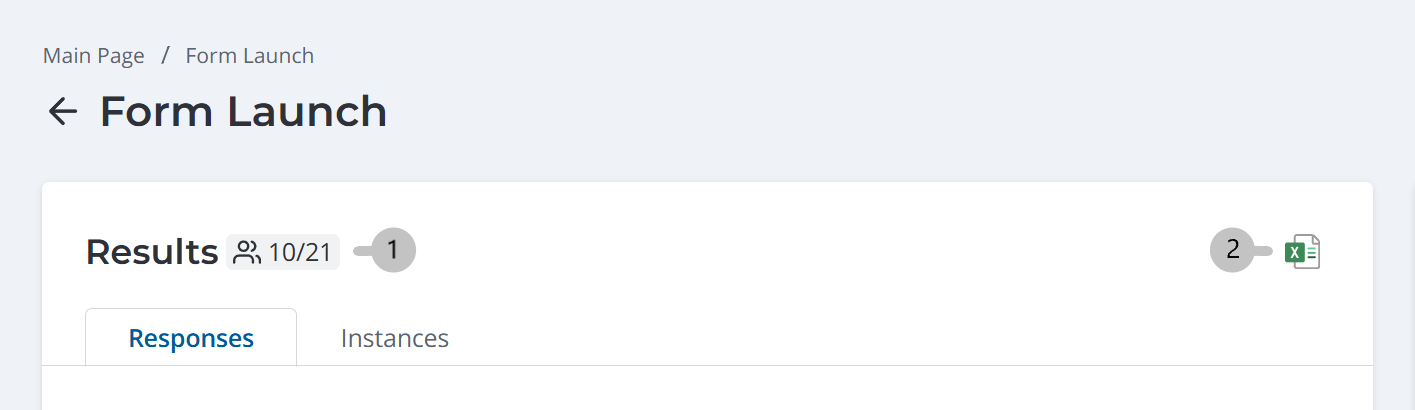
Control
- – the number of completed instances out of the total number of instances.
 – click to export the launch data to an XLSX file. The file contains the title of the launch, the names of the respondents, the questions of the HR form, and responses.
- Responses
- Instances
The Responses tab lists HR form questions and responses for each of them.
Control
- – click to download a response provided as an attachment.
- Download all – click to download all attachments as an archive.
The Instances tab lists respondents' form instances provided within the currently viewed form launch. The instances are grouped by state.
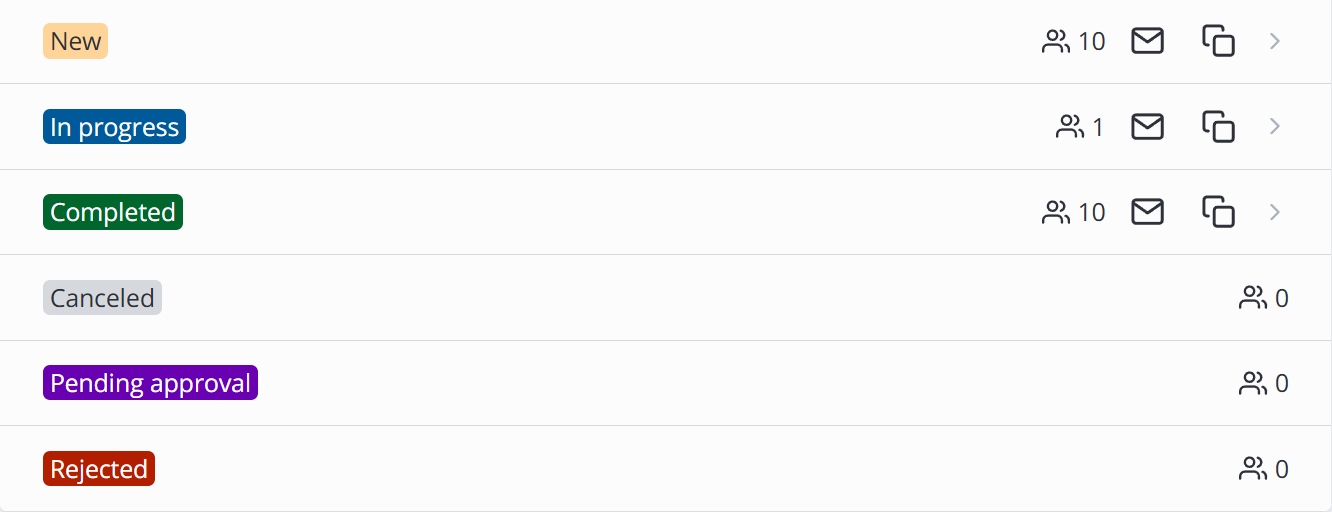
Control
- Click a group to expand the list of respondents. Click again to collapse the list.
- – displays the number of instances in the state.
- – click to open a new email with the email addresses of respondents in the group.
- – click to copy the email addresses of respondents in the group.
Form launch information
The Form launch information area contains main information about the form launch:
- Current state
- Launch title
- Start date and time
- Days and hours elapsed since the start
- List of respondents
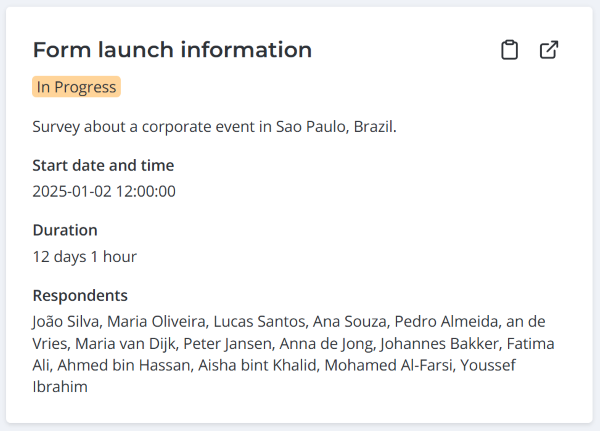
Control
- – click to open the HR form in the portal.
- – click to open the launch in the agent interface.