Onboarding Request
Service portal users with required roles can submit an onboarding request. The request will be processed by the company's HR department. In their portal Activities, the caller can monitor the processing of their request and communicate with the employee assigned to it.
Roles required:
Create on the portal – organizational unit heads of any level and their delegates, as well as hrm_agent or hrm_supervisor.
Agent interface users with special HRM roles can process onboarding requests. Read more in the Agent Interface – Onboarding article.
Create a request
::: We recommend creating onboarding requests on the portal if you do not employ new hires using Job Posts and Applicant Submissions. :::
To create an onboarding request, complete the following steps:
- Go to Portal main page → Service catalog → HR.
- Click Onboard new hire and fill in the form fields.
- Click Send.
When the form is saved, the system redirects you to the confirmation page:
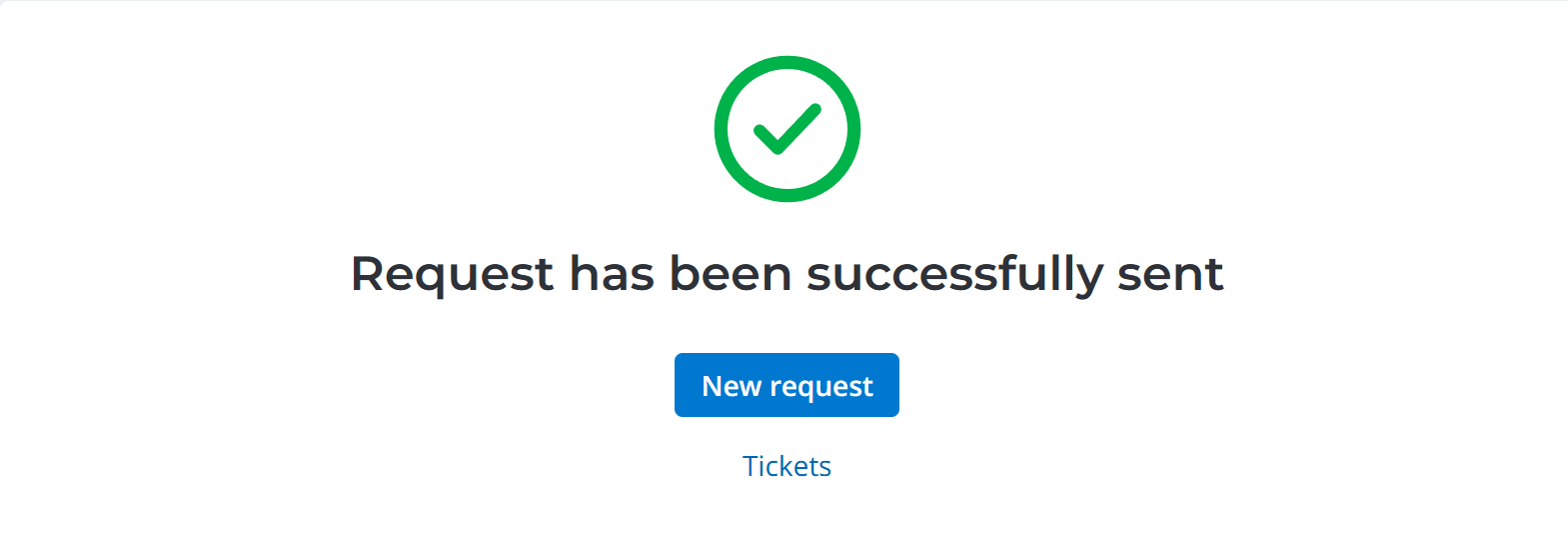
From this page, you can create another request. To do so, click New request.
To open your service request list, click Tickets.
Onboard new hire form fields
| Field | Mandatory | Description |
|---|---|---|
| Company | Y | The field is automatically completed with the current user's company. You can edit the field and specify another company where the new hire will work. You can choose only from the companies whose Class is Internal. |
| Position | Y | Specify the new hire's position in the organizational unit. |
| Position slot | Y | Specify the position slot to be occupied by the new hire. You can choose only from the slots related to the specified position and whose state is Available, Recruiting, or Approved. |
| Organizational unit | Y | The field is automatically completed with the current user's organizational unit. You can reference the new hire's organizational unit manually. If the Company is specified, you can specify only an organizational unit that belongs to the company. If the Company is not specified, the Organizational unit field is cleared. |
| Manager | Y | The field is automatically completed with the organizational unit's head. You can reference the new hire's manager manually. |
| Date of employment | Y | Specify the date of the first working day for the new hire. |
| Last name | Y | Specify the new hire's family name. |
| First name | Y | Specify the new hire's given name. |
| Middle name | Y | Specify the new hire's additional name. |
| Mobile phone | Y | Specify the new hire's phone number. |
| Y | Specify the new hire's email. | |
| Date of birth | N | Specify the new hire's date of birth. |
| Citizenship | N | Specify the new hire's citizenship. |
| Description | N | Add the necessary information to onboard the new hire. |
| Task list | N | Select the checkboxes next to the tasks that need to be completed to fulfill your request. |
Use the attachment window to upload files related to the record. To add your files, drag and drop them into the attachment window or click Upload from computer and add files via the file manager.
Tickets
You can find the list of all your requests on the Tickets page. Visit the page any time to monitor the state of all your requests. To do this, go to Activities → Tickets in the header of the portal.