Asset Hierarchy Tree
When you open the asset relationship tree, the asset node from which you opened the tree is centered in the window. This node is also highlighted so that you can easily find it when zooming in and navigating the tree.
The nodes display the following information:
-
For assets: the nomenclature subcategory name and the name of the specific asset.
-
For consignments: the nomenclature subcategory name, the displayed consignment consumption name, and the consumption quantity.
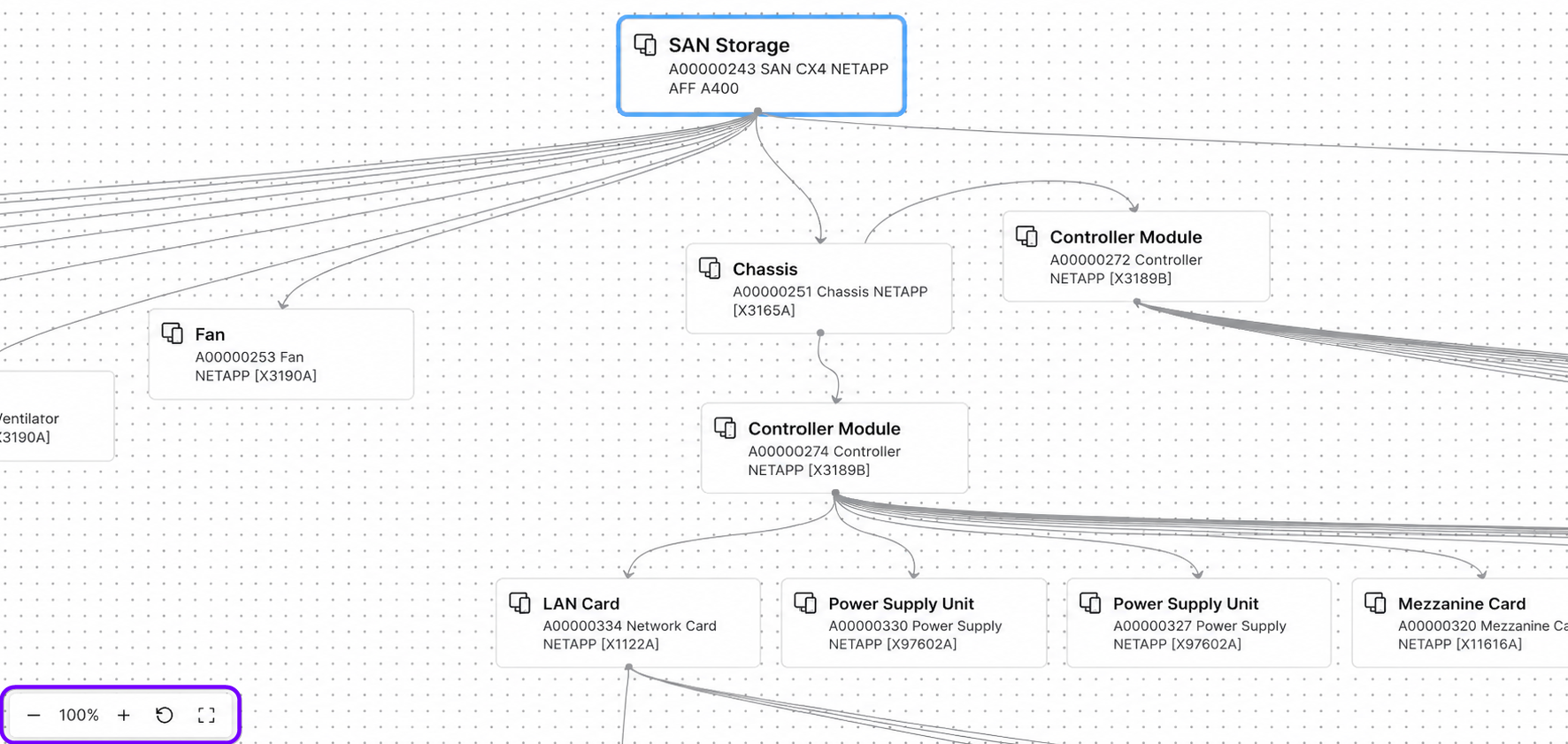
Navigation and controls
-
Drag – hold down the left mouse button and drag the tree in any direction.
-
Zoom – use the and buttons or scroll the mouse wheel to zoom in or out.
-
– click to restore the initial node layout.
-
– click to fit the entire tree to the screen.
-
Move a node – hover over the node you want to move, hold down the left mouse button, and drag the node to a new position.
-
Moving a node does not affect the relationships between assets.
-
When you refresh the page, the tree returns to its initial state.
When you hover over a node, a tooltip appears indicating whether the corresponding asset is a consignment and, if so, the consumption quantity. The tooltip also provides information about whether the record is active, the asset's current Not found state, or any hierarchy errors that need to be fixed.