Create Incidents
Creating an incident is possible through the service portal and agent interface. Depending on the role and authority of users in the system, they have access to different options for creating incidents:
- via the Self-Service Portal
- via the agent interface
- from a user query
Create an incident via the Self-Service Portal
This procedure is available for all end-users.
To create an incident, complete the following steps:
- Navigate to your Self-Service Portal main page.
- Click Report an incident and fill in the fields.
- Click Save.
- Click Save.
Incident form fields
| Field | Mandatory | Description |
|---|---|---|
| Urgency | Y | Specify the urgency of the request. Typically, it is evaluated based on the time remaining until the incident impacts the business. See the Priority Management article to learn more. |
| Subject | Y | Add a brief description of the incident. |
| Description | N | Add a detailed description of the incident. |
If the urgency is set to Very high, the caller is asked to confirm information by phone. The phone number displayed here can be specified in the itsm.notification.contact.phone system property.
You can also attach some files by using the attachment window. To add files, drag them to the attachment window, or click Upload from your device and select them on your device.
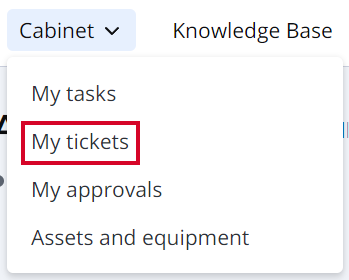
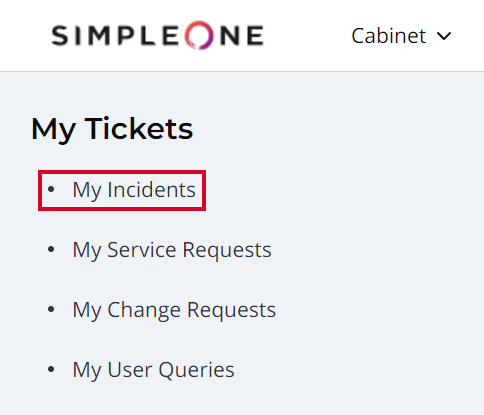
You can track the work process on the My Tickets page. To open the record of the incident, complete the following steps:
-
In the header, navigate to Cabinet → My Tickets.
-
Click My Incidents on the left.
-
Check the state of the created incident.
Also, you can see more information about the incident by clicking its number.
Create an incident via the agent interface
Role required: ITSM_agent or admin.
To create an incident, complete the following steps:
- Navigate to Incident Management → New.
- Fill in the fields.
- Click Save or Save and exit to apply the changes.
Incident form fields
The incident number has the INCXXXXXXX format and is populated automatically.
- General
- Activity Feed
- Related Records
- Closure Information
| Field | Mandatory | Description |
|---|---|---|
| State | N | Specify the work state and progress of the incident. See the Process Incidents article to learn more. |
| Resumption of work | Y | Indicate the date and time when the work on the incident must be resumed. The field appears when the incident is in the Postponed state. |
| External task | N | Specify the task to do for the external company. The field appears when the incident is in the External processing state. If the field is populated, it is displayed in other states. |
| External company | N | Specify the company that works on the incident task externally. The field appears when the incident is in the External processing state. If the field is populated, it is displayed in other states. |
| Resumption of work | Y | Indicate the date and time when the work on the incident must be resumed. The field appears when the incident is in the Postponed state. |
| External task | N | Specify the task to do for the external company. The field appears when the incident is in the External processing state. If the field is populated, it is displayed in other states. |
| External company | N | Specify the company that works on the incident task externally. The field appears when the incident is in the External processing state. If the field is populated, it is displayed in other states. |
| Impact | Y | Measure the impact caused by the incident on the business processes. When the Major incident checkbox is selected, the value of this field is changed to Very high. See the Priority Management article to learn more. |
| Urgency | Y | Specify the urgency of the request. Typically, it is evaluated based on the time remaining until the incident impacts the business. See the Priority Management article to learn more. |
| Priority | Y | Identifies the importance of the incident. This field is populated automatically based on the value of the Impact and Urgency fields. See the Priority Management article to learn more. |
| Assignment group | Y | Specify the group assigned to work on the incident. This field is non-mandatory if the Assigned user field is filled in or the State is In progress, Completed, or Closed. There is a dependency between the Assigned user and Assignment group fields. See the Auto Assignment article to learn more. |
| Assignment group | Y | Specify the group assigned to work on the incident. This field is non-mandatory if the Assigned user field is filled in or the State is In progress, Completed, or Closed. There is a dependency between the Assigned user and Assignment group fields. See the Auto Assignment article to learn more. |
| Assigned user | Y | Specify the user assigned to work on the incident. This field is non-mandatory if the Assignment group field is filled in and the State is not In progress, Completed, or Closed. To reassign a user or a group, use the Reassign button at the top right corner of the window. Assign another user or a group by clicking the magnifier icon next to the Assigned user field. As a result, the incident state changes to Assigned. There is a dependency between the Assigned user and Assignment group fields. See the Auto Assignment article to learn more. |
| Subject | Y | Add a brief description of the incident. After saving, the field is hidden on a form. |
| Description | N | Add a detailed description of the incident. If the Infrastructure incident checkbox is selected, this field becomes read-only after the record is created. |
| Steps to reproduce | N | Specify the steps to reproduce the incident. |
| Screenshot | N | Upload screenshots supporting the incident, if any. |
| Related CIs | N | Specify the related configuration items affected by the incident. |
| Caller | Y | Specify the originator of the incident. |
| Company | N | Specify the company to which the incident is related. |
| Service | Y | Specify the service affected by the incident. |
| Contact type | Y | Select the source from which the request is received. Available options:
When the Infrastructure incident checkbox is selected, the available options change to:
The incidents with the Contact type set to Monitoring can be automatically created by an integrated monitoring system via Monitoring and Event Management. When the record is saved, this field becomes read-only. |
| Contact type | Y | Select the source from which the request is received. Available options:
When the Infrastructure incident checkbox is selected, the available options change to:
The incidents with the Contact type set to Monitoring can be automatically created by an integrated monitoring system via Monitoring and Event Management. When the record is saved, this field becomes read-only. |
| Infrastructure incident | N | Select this checkbox to create an infrastructure incident. When the record is saved, this field becomes read-only. |
| Major incident | N | Select this checkbox to categorize the incident as a major incident. The field appears on the form when the Infrastructure incident checkbox is selected. If the Infrastructure incident checkbox is cleared, the Major incident checkbox is cleared and hidden. Only the assigned user, an incident manager or an admin can edit this field. After the record is saved, this field is displayed and can be edited if the Infrastructure incident checkbox is selected. |
| Major incident | N | Select this checkbox to categorize the incident as a major incident. The field appears on the form when the Infrastructure incident checkbox is selected. If the Infrastructure incident checkbox is cleared, the Major incident checkbox is cleared and hidden. Only the assigned user, an incident manager or an admin can edit this field. After the record is saved, this field is displayed and can be edited if the Infrastructure incident checkbox is selected. |
| Attention required | N | Select this checkbox to notify the line manager of the assigned group or user. |
| Followers list | N | This field is populated automatically with a list of users who follow the incident for tracking the updates. It is read-only for any users without the ITSM_agent, request_manager, or admin roles. |
| SLA Breached | N | By default, the field is hidden. When the time set in the SLA indication expires, the value of the field changes from false to true. |
This section appears after the incident is saved.
| Field | Mandatory | Description |
|---|---|---|
| Discussion | N | Write a comment with additional information about the incident. If the Infrastructure incident checkbox is selected, this field is hidden. |
| Work notes | N | Add any work notes that may be useful. |
Use this tab to create relationships between incidents and other types of tasks. See Create Records Related to Incidents to learn more.
The Closure Information tab appears and becomes mandatory when the incident state is Completed or Closed. See Process Incidents to learn more.
The External Specification and Internal Specification related lists contain Knowledge Base articles with the same Service as in the incident, for quick access to the necessary instructions. See the Knowledge Management article to learn more about the service specifications.
Access to the form fields
The read or update access to certain fields of a record can vary depending on the current user's roles.
- The users with the ITSM_agent or incident_manager roles, other than the creator of the incident or the assigned user, can:
- View the record.
- Submit Work notes and Discussion comments in all states of the incident other than Closed.
- Edit the State, Assignment group, and Assigned user field values in all states of the incident. The Work notes field becomes mandatory in this case.
- Edit the Followers list field value.
- The caller can:
- View the record, except for the Work notes field.
- Submit Discussion comments.
Create an infrastructure incident
Role required: ITSM_agent or admin.
An infrastructure incident is an incident created by service agents of the 1st or the 2nd levels or by the integrated monitoring system.
To create an infrastructure incident, complete the steps described above, and select the Infrastructure incident checkbox.
You can categorize an infrastructure incident as a major incident. To do so, select the Major incident checkbox.
A major incident is an incident of the highest impact and highest urgency. It affects a large number of users, depriving them of vital business functions. Major incidents have a separate procedure with shorter time scales. Major incidents require a large number of people of various hierarchy levels to be involved. A major incident is always an infrastructure incident.
When the Major incident checkbox is selected, the Impact field value is changed to Very high.
If an infrastructure incident is categorized as a major incident, a new tab, Chronology, is displayed next to the Related Records tab on its form.
Swarming session on a major incident
To enable the functionality of the Swarming Session, complete the settings described in the Set up Telegram Swarming Session article.
Swarming Session is a temporarily created group in Telegram designed to speed up the work on major incidents. Once joined, the members of the group collaborate on the incident faster and more effectively. All the updates done on the incident form (new states, comments, and changes in other fields) are copied to the group automatically. The comments from the Telegram group are also copied to the incident Activity Feed on behalf of Guest User. The work note indicates the name of the specific Telegram user who left the comment. When the incident state changes to Completed, commenting becomes impossible, and when the state changes to Closed, the group disappears.
To initiate the Session:
- Click the Start swarming button on the top of the page.
- In a new window that appears, verify the list of the participants responsible for the incident management, add or remove any if necessary. These people will receive an email invitation to join a Telegram group devoted to the major incident. By default, the recipients are: Assigned user, Incident manager and Service owner. The user who clicked Start swarming becomes the initiator of the session and also receives the invitation even though their name is not in the list.
Apart from the email invitation, a link to the Telegram group is available on the incident form, above the Activity Feed. Share the link with any person associated with the incident, even if they are not SimpleOne users. Their comments will also be transferred to the Activity Feed.
After the incident is closed, the link disappears.
Create an incident from a user query
Role required: incident_manager.
A user query is an entity of a more abstract level than an incident. To create an incident from a user query complete the following steps:
-
Navigate to User Queries → All User Queries.
-
Open the user query you want to create an incident from.
-
Click the Incident button in the top-right corner of the form.

When you create an incident from a user query they are linked to each other:
- The reference to the incident is displayed in the Related ticket field of the user query.
- The reference to the user query is displayed in the Related Records tab of the incident.
You can only create an incident from an unprocessed user query. If an incident, problem, change request, or service request has already been created from a user query, the buttons shown above are hidden from the form.