Taskboards
The taskboard provides visualization of data in the form of cards and lanes instead of lists and forms. This graphical interface allows you to manage, edit, and track tasks from the Task table and its child tables.
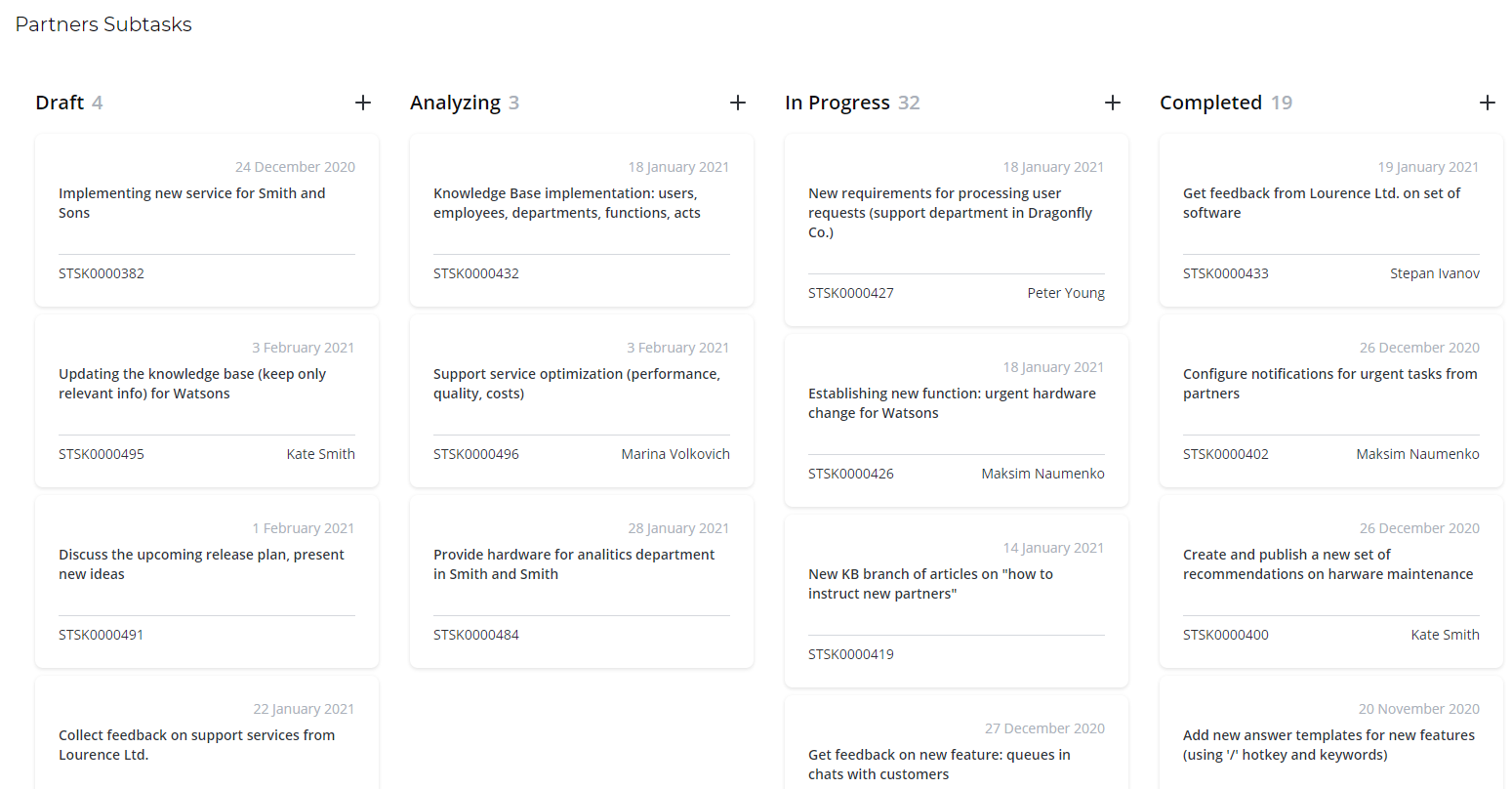
Taskboard structure
All board types share the same structure.
| Element | Description |
|---|---|
Lane 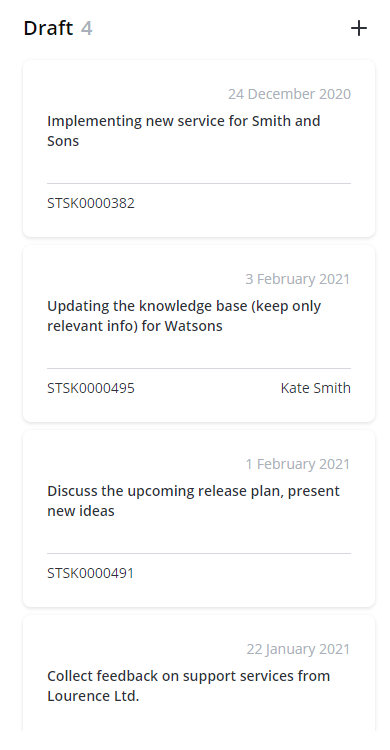 | A vertically organized group of records that contains cards with the same values. Usually, the lanes represent states, for example, Draft, Analyzing, In progress, or Completed. One lane contains cards in the one state. When you drag a card between lanes, the record changes its state to the corresponding state lane. |
Cards 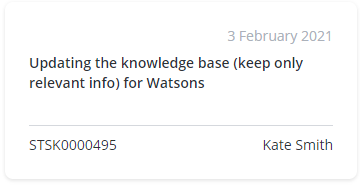 | A visual representation of a single task that contains basic information about it. The changes of a card cause changes in the related record. |
Board header  | The taskboard name. To change the header, complete the following steps:
|
In the taskboard example above, the states are Draft, Analyzing, In progress and Completed.
- If you move a card from the Draft lane to In progress, the task state will change to In progress.
- If you open a record by clicking the card, change the state in the State field and click Save, the card will automatically move to the corresponding lane.
Create a taskboard
To create a taskboard, complete the following steps:
- Navigate to Taskboards → Create New.
- Fill in the fields.
- Click Save or Save and exit to apply changes.
Taskboard form fields
| Field | Mandatory | Description |
|---|---|---|
| Name | N | Specify the taskboard name. |
| Source table | Y | Specify a table that contains source data for the taskboard. |
| Source filter | N | Specify the filter that is applied to the source table to limit the task records. Only tasks that meet the specified conditions are added to the taskboard. Use the condition builder to build a filter that fits your needs. You can create complex AND/OR filters. |
| Number field | N | Specify the source field that contains the task number to display it on the card. |
| Lane field | Y | Specify the field based on which the cards will be grouped. |
| Opened at field | N | Specify the Date and Time field whose values will be displayed as the card opening date (for example, the Created at field). |
| Due date field | N | Specify the Date and Time field whose values will be displayed as the card due date (for example, the Due date field). |
| Responsible field | N | Specify the field that contains the information about the responsible person (for example, the Assigned user field). The user's name is displayed on the card. |
| Description field | N | Specify the field that contains the description of the task (for example, the Subject field). The values are displayed on the card. |
| Card limit | N | Specify the limit of cards displayed on the taskboard. |
| Owner | N | The owner of the taskboard. This field is automatically populated. |
| Active | N | Select this checkbox to activate the taskboard. |
Related tables:
- Taskboard (tb_board) – stores records of existing taskboards.
- Taskboard Column (tb_lane) – stores records of lanes of the existing taskboards.
- Taskboard Card (tb_card) – stores records of the tasks of the existing taskboards.
Create a record
You can add new records using the taskboard interface.
To add a new record, click the plus icon at the top of the lane or the Move a card or create a new one box. In the window appeared, fill in the fields and click Save. The set of fields depends on the table specified in the Source table field.
The created record is displayed on the taskboard, and is created in the table.
Open a taskboard
To open an existing taskboard, complete the following steps:
- Navigate to Taskboards → All Taskboards.
- Open the record you need.
- In the burger menu , select Switch to board.