User Interface
In SimpleOne, the interface combines the best user experience and modern design guidelines, allowing users to interact with the system in a clear and convenient way.
Depending on the roles assigned to a particular user, they can work via the Self-Service Portal or via the agent interface.
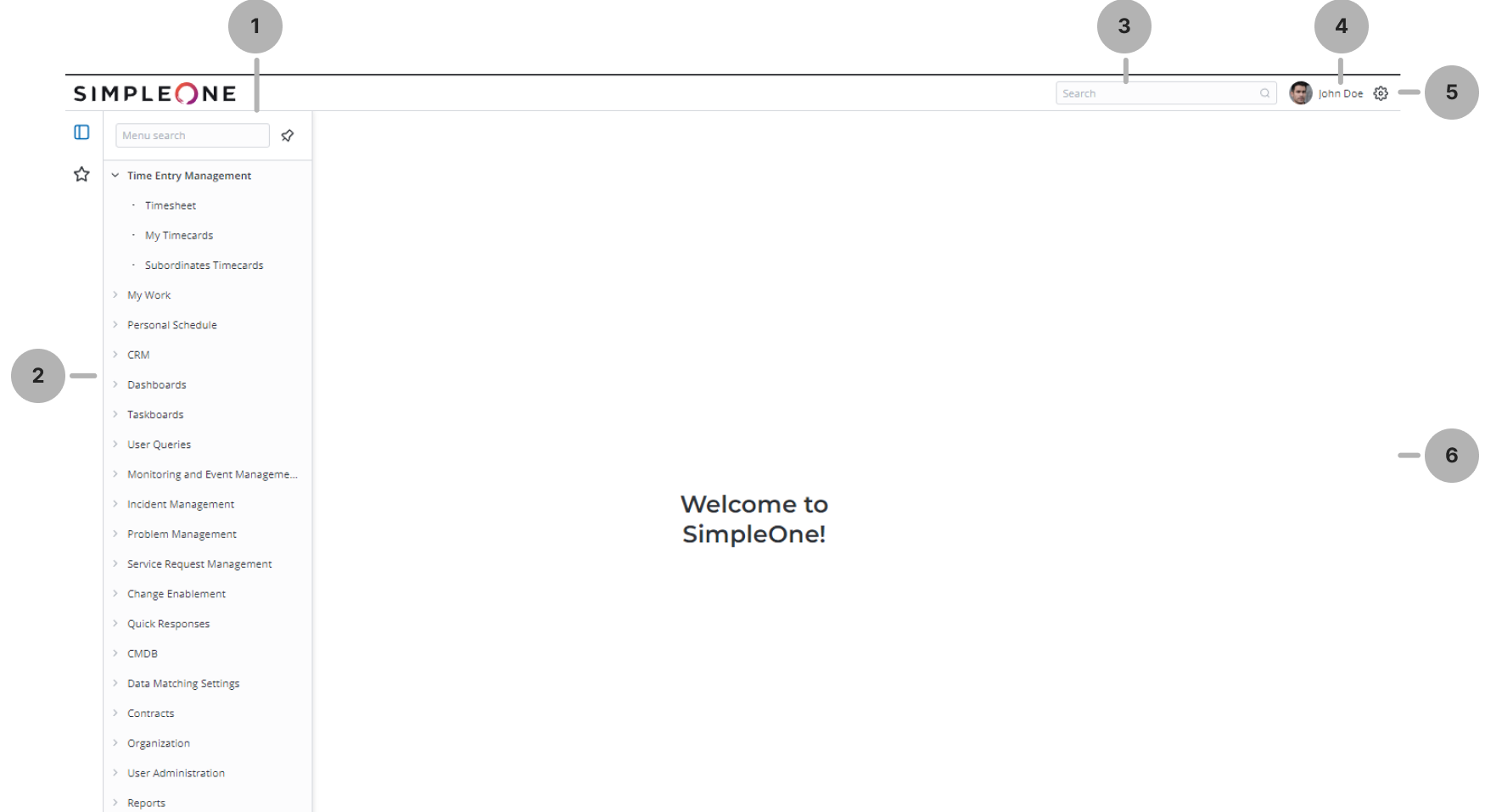
Get acquainted with the main working areas of the SimpleOne agent interface:
- Menu Search – find the necessary category or category item using the filter bar.
- Navigation Menu – browse and manage categories and category items; save the desired ones to the Favorites menu.
- Global Search – search the information you need by the indexed fields throughout the SimpleOne system.
- User Profile Menu – manage your profile activity in SimpleOne.
- Preferences – use personal settings to customize your SimpleOne program workspace.
- Main Area – work with lists and forms to manage your system.
Navigation menu
This is the main menu of the SimpleOne system. The Navigation menu items are logically grouped into categories. Select a particular category or item to navigate to a page with data you need.
Categories and items to which you navigate most can be added as Favorites to provide quick access.
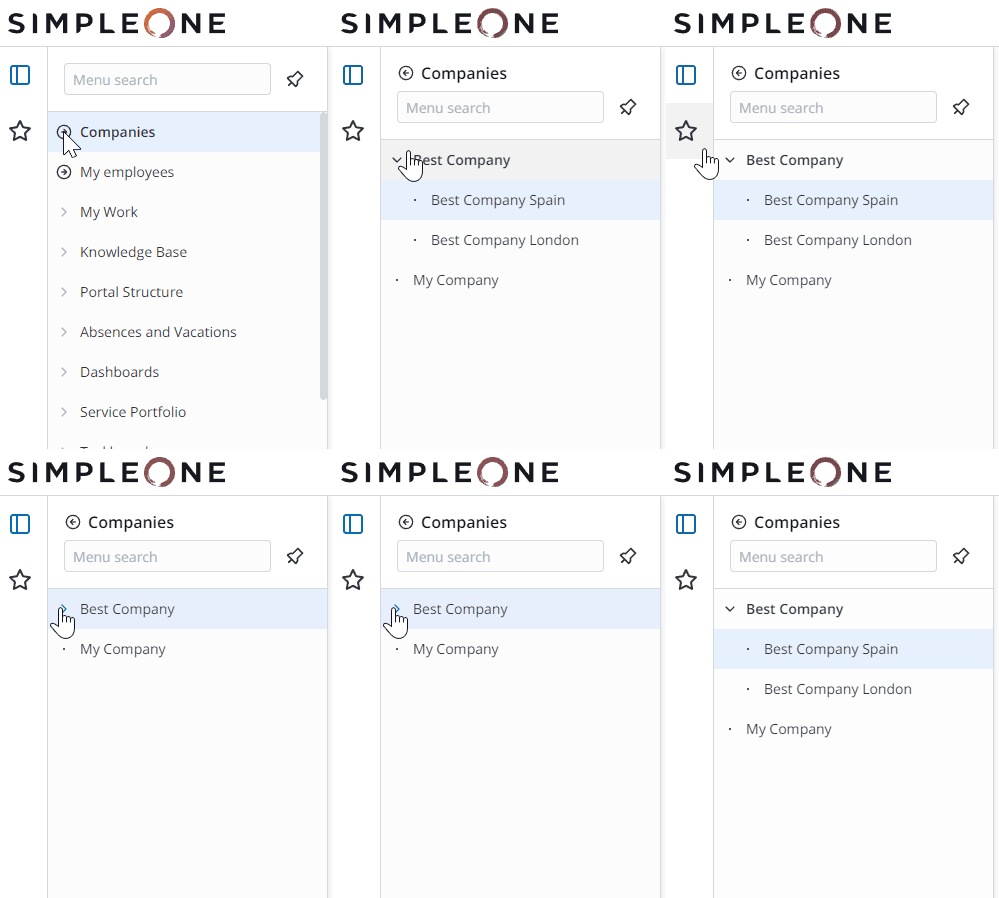
Dynamic menu
The Dynamic menu is a special navigator element that works as the entry point to a separate submenu. Categories and items of such a menu are formed based on the specified table data.
Menu search
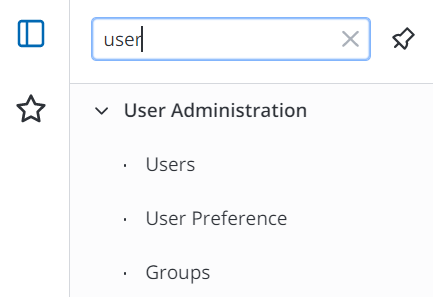
The Menu search allows you to quickly find menu categories or menu items you want.
To apply the search query, start typing the words or word fragments in the text field. The Navigation menu with the applied filter displays the categories and category items which names match the condition.
Favorites
The Favorites functionality provides quick access to the frequently used categories (including their child categories), child categories (including their items but not the parent category), category items, and also filters.
The list of favorite items is available on the Favorites tab marked with the star icon .
To add a category, child category, or category item to Favorites, click the star icon next to it. Also, you can add a filter of the list view that was prepared earlier to the Favorites. To do so, just drag and drop it to the Favorites navigation tab.

There are two ways to delete a category, category item or filter from Favorites:
- When you are in Favorites, click icon in front of the desired item. Applicable for categories, category items, and filters.
- When you are on the Categories tab, clear the star icon for the item you want to delete from Favorites. Applicable for categories and category items.
Global search
The Global search allows you to find information by the indexed fields of the category items lists.
To search the information, fill in the Search field with a word or word fragment, then click the search icon or press Enter.
All search results are displayed in the main area. Categories and items containing search results are listed in the panel on the right. They are sorted by the number of search results.
Operators
The SimpleOne search operators help you to build clear and exact query statements according to your needs.
Configure your queries with one or more operators below.
Operator descriptions
| Operator | Description |
|---|---|
| A * B | The asterisk operator matches any character or even any number of characters. Therefore, it may return words or whole phrases. |
| "A" | Quotation marks allow you to search for an exact word or phrase. |
| A AND B | This operator returns results related to both A and B. It is very useful to apply this operator when making a query with other operators because SimpleOne uses AND for regular searches as the default operator. |
| A OR B | This operator returns results related to A, B, or both. |
| A NOT B | This operator returns results matching the A condition, excluding table records with indexed columns matching the B condition. |
User menu
Manage your profile information and account activity with the User Menu. To use its features, click your name or avatar at the top right and select one of the options in the drop-down list.

- Profile – manage your profile information and account settings.
- Impersonate – impersonate users and gain all their access rights for testing purposes. This option is available if you have the impersonator role.
- Logout – end the session and log out from your SimpleOne account.
Preferences
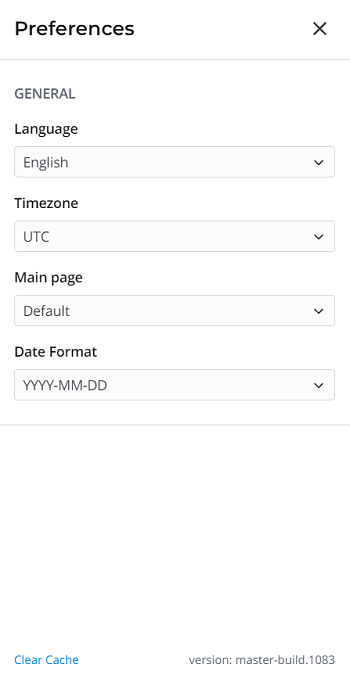
Customize your SimpleOne program workspace with general and other settings according to your needs. To open the preferences panel, click the gear icon to the right of your profile name and set the desired options. To close the preferences panel, click .
The general preferences allow you to specify the interface language and a timezone. Also, there you can specify the interface main page displayed after login and the date formats.
General preferences
- Language – change the interface language.
- Timezone – change the user timezone.
- Main page – change the user default page.
- Date format – change the preferable date format.
User interface action
Clear cache is a UI action that clears URL cache for you.
Main area
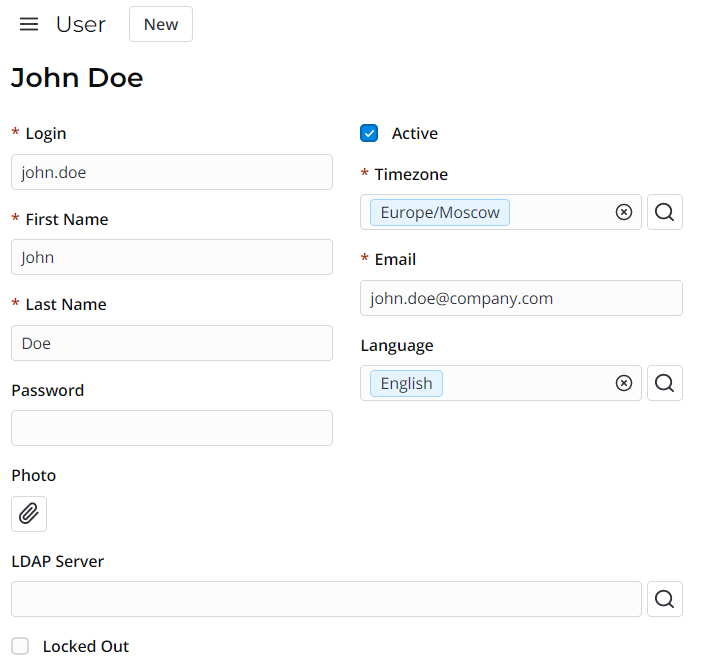
In the main area, you can interact with records and widgets. See the Forms and Lists articles to learn more.
Form interface
List interface