Announcements
Announcements are used to deliver news or notifications to the users of the service portal. They are displayed on the portal and/or sent via email.
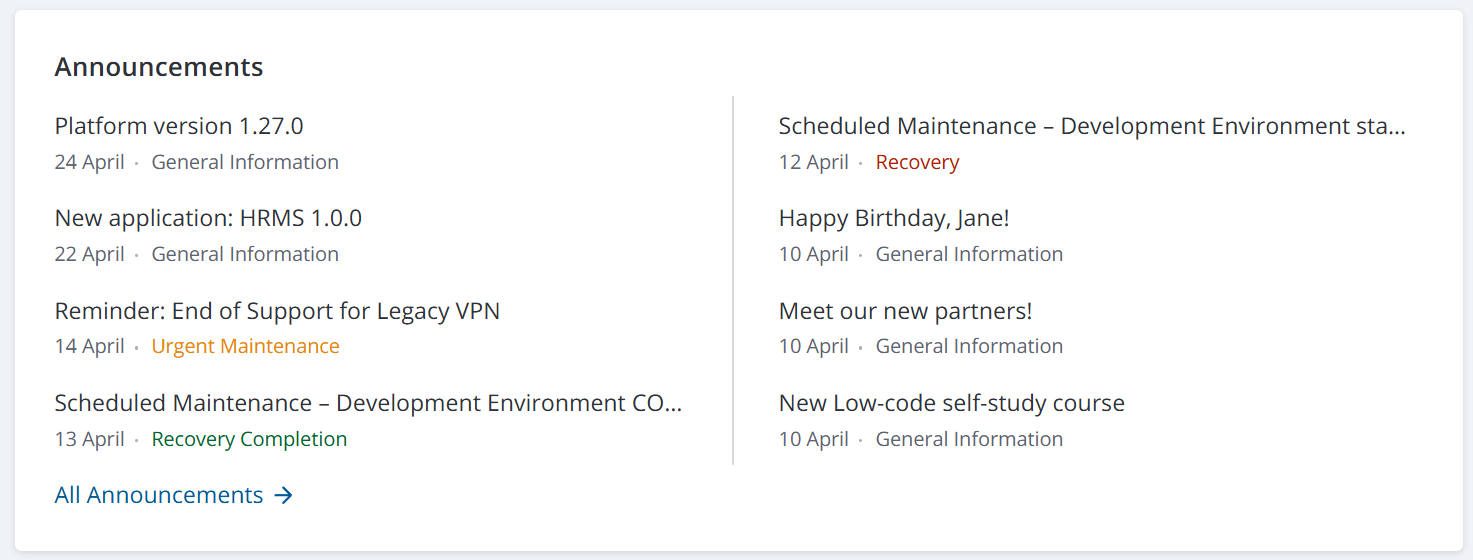
When displayed on the portal, the announcement list is located in the Announcements area that is shown below:
Announcement types
There are five announcement types in SimpleOne. They are used to categorize announcements based on the information they provide.
| Announcement Type | Description |
|---|---|
| Recovery | Informs that some service or CI recovery activities have been started. |
| Recovery completion | Informs that some service or CI recovery activities are over. |
| Maintenance | Informs about updates, backups, or maintenance. |
| Urgent maintenance | Informs about an unexpected breakdown. |
| General information | Shows notifications. |
You can customize the highlights of the announcement type and the view of the announcement widget on the service portal. You can also customize the announcement highlight in the agent interface. See the Style Rules article to learn more.
Create an announcement
To create an announcement, complete the steps below:
- Navigate to Service Announcements → New Announcement.
- Fill in the fields.
- Click Save or Save and exit to apply the changes.
You can also create announcements from incidents, change requests, and user queries. For more information, see the relevant sections in the ITSM documentation.
Announcement form fields
| Field | Mandatory | Description |
|---|---|---|
| Number | Y | The announcement number. This field is populated automatically and has the ANCMXXXXXXX format. It is always read-only. |
| State | Y | The announcement state. Available options:
Only the Published announcements with the selected via Portal checkbox are displayed on the Self-Service Portal. |
| Related Incident | N | The reference to the incident the announcement was created from. This field is read-only and displayed only for the announcements that were created from incidents. |
| Related Change Request | N | The reference to the change request the announcement was created from. This field is read-only and displayed only for the announcements that were created from change requests. |
| Related User Query | N | The reference to the user query the announcement was created from. This field is read-only and displayed only for the announcements that were created from user queries. |
| Type | Y | Select the announcement type. Available choice options are:
For the announcements that were created from user queries, the Type field is read-only and set to General information. |
| Service | Y | Specify the related IT service. |
| Recipient emails | N | Specify the emails of the recipients of the announcement. You can enter multiple emails separated by commas. |
| Reviewer emails | N | Specify the emails of the reviewers of the announcement. You can enter multiple emails separated by commas. |
| Subject | Y | Enter the announcement subject. For the announcements created from incidents, change requests, and user queries, the Subject is automatically prefilled with the Subject of the source entity. You can change this value. |
| Content | N | Type the announcement body in rich-text format. Design the announcement body using the built-in editor functionality, such as formatting, working with tables and media, lists, styles, and headings. |
| Signature | N | Add a signature to appear in the announcement caption. See the Announcement Signature section to learn more. |
| Description | N | Add a short announcement description. It is not shown to the users of the service portal. For the announcements created from user queries, this field is prefilled with the Description of the source user query. You can change this value. |
| via Email | N | Select this checkbox to send this announcement via email. It will be sent to all addresses specified in the Recipient Email field. |
| via Portal | N | Select this checkbox to display this announcement on the Service Portal in the Portal Announcements area. |
By default, announcements are not available for unauthorized users on the Self-Service Portal.
To make it possible to share an announcement link with your partners and clients who do not need to log into the system to read it, select the Public checkboxes in relevant records:
- Announcement portal page record in the Page (page) table.
- Announcement widget instance record in the Widget Instance (sys_widget_instance) table.
If a page contains several widgets, you should allow access to all of them. Otherwise, the system will display an empty page.
As a result:
- Unauthorized users follow a link to a published announcement, they can read it without logging in.
- Unauthorized users can open other records displayed in the Last Announcements widget.
Create an announcement signature
The announcement signature is a customizable block containing text and/or media. In this block, you can place a signature of your announcement and bind it to a new announcement you created in the appropriate field.
To create an announcement signature, complete the steps below:
- Navigate to Service Announcements → Signatures.
- Click New and fill in the fields.
- Click Save or Save and exit to apply the changes.
Announcement signature form fields
| Field | Mandatory | Description |
|---|---|---|
| Name | N | Specify a name for the announcement signature. |
| Body | Y | Type a signature message. Design the signature body using the built-in editor functionality, such as formatting, working with tables and media, lists, styles, and headings. |
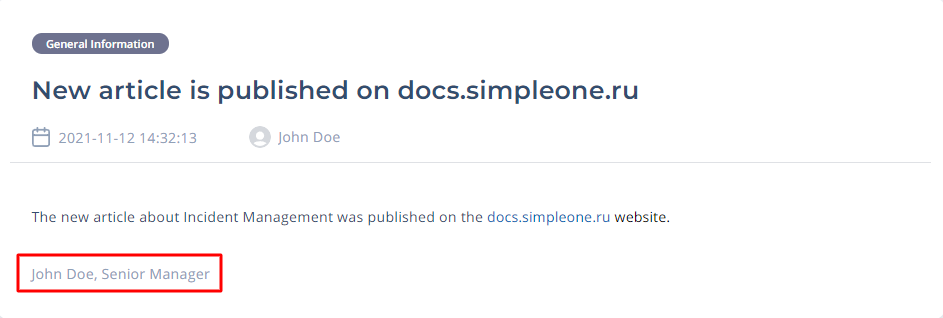
Below you can see an example of an announcement with a signature set on the Portal: