List Layout
In SimpleOne, configuring the list layout allows you to change the list appearance. You can configure which columns appear in the list view, as well as define their order. These changes will apply for all users with access to the list view.
Role required: admin.
List layout view
To change a list view's layout, complete the steps below:
-
Open the list you need to reconfigure.
-
On the list, open the burger menu and select Configure → List Layout to open the List layout configuration page.
-
In the View name field, select the view you need.
-
Configure the list view using the Available and Selected boxes.
infoMove elements between the Available and Selected boxes by dragging them or using the and buttons. Alternatively, you can double-click their names.
- To remove or add all the fields, click the or button respectively.
- To move several elements in a row, select them with the Shift key pressed and drag them from the Available box to the Selected one, or vice versa.
- To move several scattered elements at once, select them with the Ctrl key pressed and drag them from the Available box to the Selected one, and vice versa.
- To change a column's position in the list layout, drag its name where needed in the Selected box. You can also use the and buttons.
- To make the list display only the records that meet specific criteria, select a previously created filter in the corresponding field. This filter will be automatically applied each time the record list is opened in this table view.
When configuring list layouts, keep in mind that the values in the first column always link to their corresponding records.
-
Click Save to apply the changes.
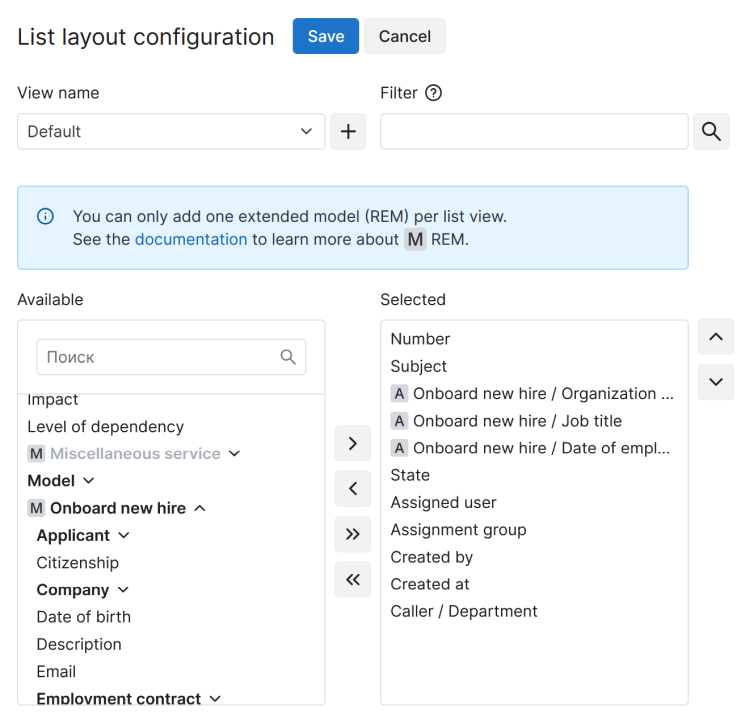
Available fields
The Available box contains all the table fields that can be added to the list view.
Elements marked with the bold font support dot-walking. You can add such an element itself, or you can click the arrow icon, browse through the hierarchy, and add one of the elements below.
If a record extended model (REM) with active attributes is configured for the table, they will also be available for selection. Models are shown with the M icon, while their attributes are marked with A.
You can add the attributes of only one model per list view, in any quantity and order:
- Expand a model to view its attributes.
- To add all the attributes of a model to the view, drag to the Selected box. You can also add attributes and, where applicable, their dependent or nested elements individually.
- In the Selected box, attributes are not grouped by model. You can change their order.
- To add another model's attributes to the view, remove all the attributes from the Selected box.
- Models are not added to the Selected box together with other elements when you click . They are also not added when double-clicking their names.
Create a new view
In SimpleOne, you can create separate list views with different sets of columns for various tasks.
To create a separate view, complete the steps below:
-
On the list, open the burger menu and select Configure → List Layout to open the List layout configuration page.
-
Next to the View name field, click .
-
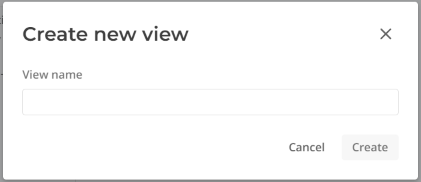
In the modal window that opens, enter the view name and click Create.
-
Configure the fields to be displayed in the view by moving them from Available to Selected.
-
(optional) If you need the list to display only records that meet specific criteria, select a previously created filter in the corresponding field. This filter will be automatically applied each time users open this table list in the specified view.
-
Click Save to apply the changes.