Personal List Layout
Users can customize their list layouts with personal settings in a way they need. Personal list view customization is also available for related lists on the forms of the SimpleOne elements.
Personal list layouts have a higher priority than default ones.
Configure a personal list layout
To customize your personal list view, follow the steps below:
- Open the list you want to configure.
- Click the gear icon to the left of column titles.
- In the View name field, select the view you want to configure.
- Establish the desired set of fields using the personal list configuration features.
-
- (optional) If you need the list to display only records that meet specific criteria, select a previously created filter in the corresponding field. This filter will be automatically applied each time you open this table list in the specified view.
Administrators define the list views accessible for personal customization with the List layout settings.
The list layout view is represented by two boxes with customization buttons. The Selected box contains the columns already displayed on the personal list layout, while the Available box contains the rest of the columns that can be added to the view.
When configuring the personal list layout, you can add, reorder, and remove the attributes of a record extended model (REM) if it exists for the table and its attributes are active. Models are shown with the M icon, while their attributes are marked with A. You can only add the attributes of one model per list view. Any quantity and order is allowed.
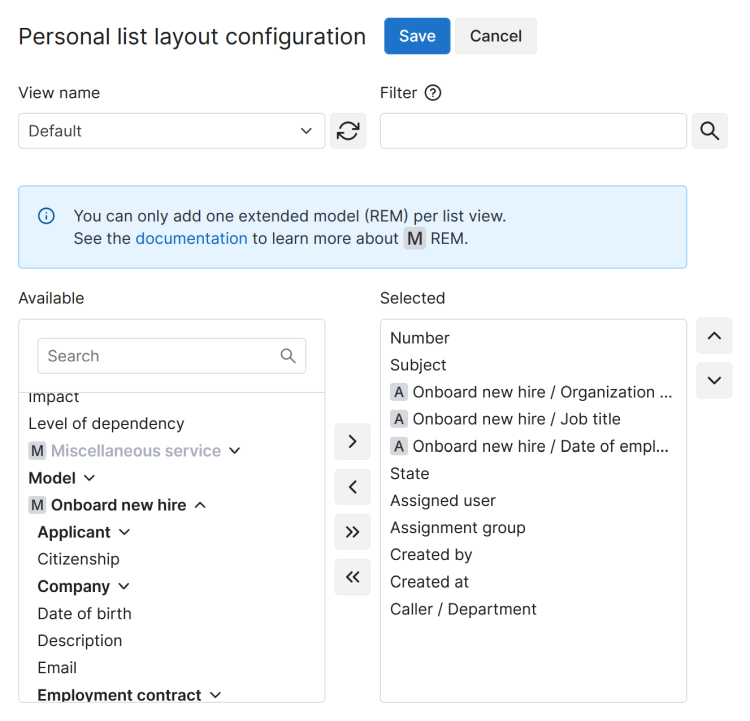
All the views created by administrators are available in the View name field on the configuration page.
Reset to default
To reset your list view settings to default, follow the steps below:
- Select the view you need to customize in the View name field.
- Click .
Add columns
To add a column to the personal list layout, follow the steps below:
- Select the view you need to customize in the View name field.
- In the Available box, select an element you want to move. Moving a REM model adds all its attributes.
- Drag it or click to move this element to the Selected box.
- Click Save to apply the changes.
To add all the columns, except for REM attributes, to the personal list layout, follow the steps below:
- Select the view you need to customize in the View name field.
- Click .
- Click Save to apply the changes.
Delete columns
To delete one column from the personal list layout, follow the steps below:
- Select the view you need to customize in the View name field.
- In the Selected box, select an element you need to delete from the view.
- Drag it or click to move this element from the Selected box.
- Click Save to apply the changes.
To delete all the columns from the personal list layout, follow the steps below:
- Select the view you need to customize in the View name field.
- Click .
- Click Save to apply the changes.
Reorder columns
To reorder the columns of the personal list layout, follow the steps below:
- Select the view you need to customize in the View name field.
- In the Selected box, reorder the columns by dragging them where needed. You can also use and .
- Click Save to apply the changes.