Related Lists
Related lists appear at the bottom of forms and display records from the tables related to the current record. For example, a Table (sys_db_table) record contains the Column related list. It displays records from the Column (sys_db_column) table related to the current record.
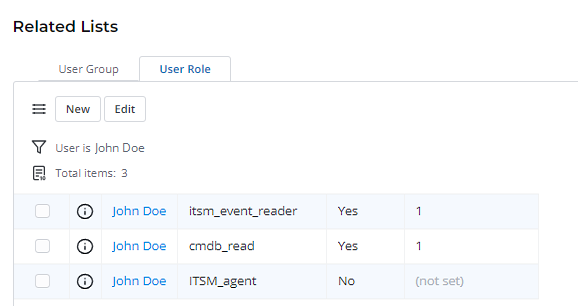
There are two types of related lists:
- Referenced related lists have a direct reference to another table through the sys_id of the current record. For example, a record in the Table A contains the ID of the record from the Table B, then the referenced record in the Table B will have a related list with the record from the Table A in it. This connection is provided by the Reference, List, and Document ID column types.
- Synthetic related lists do not have direct references to each other. See the Scripted Related Lists section of this article.
In related lists, users can view and edit information like in any other list, and administrators can configure their appearance on forms by configuring the Form Layout.
When users do not have access to some records in the Related Lists area, the following message is displayed:
Some entries are hidden by security policy
- When the new related list is added, the Default list view of the related table is copied and used as the view of the related list. You can set up the view later.
- When a child table is created, its form and list views are copied from the parent table, taking into account views of sections and related lists. You can set up these views later. Refer to the Form Layout and List Layout articles to learn more.
To narrow the list of records in a related list, use the condition builder. Note that the set filters will not be saved as default. To apply a complex filter to a related list, use the scripted related list.
To display more records in a related list, enable the Compact view in your Preferences.
Add a related list element
Role required: admin.
To add a related list to a form, complete the steps below:
- Open the form to which you need to add a related list.
- In the burger menu, select Configure → Related Lists → Layout.
- Configure sets of related lists by moving the elements in the heapselect:
The Available box contains a list of related tables you can add to the form. The Selected box contains a list of related tables displayed on the form.
Edit the related lists area with the following actions:
- Move elements by dragging them or using the and buttons.
- To remove or add all the fields, click the or button.
- To change the order of the elements, drag them or use the and buttons.
- To move several scattered elements at once, select them with the Ctrl key pressed and drag them from one box to the other.
- To move several elements in a row, click the first and last elements with the Shift key pressed, and drag them from one box to another.
- Click Save to apply the changes.
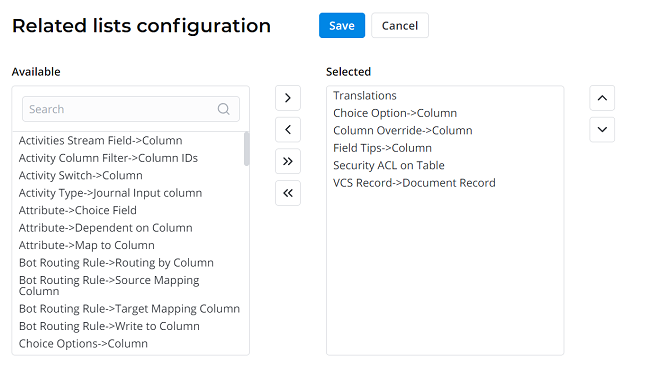
The title before the arrow (→) stands for the table storing related records. The title after the arrow (→) stands for the field, referring to the current record. That is, Incident Task→Parent will display records from the Incident Task table that have the current record ID in the Parent field.
There may be more than one field in one table: the Change Request (itsm_change_request) table may contain references to the current record in the Caused by Incidents, Parent, Related Incidents, and Resolved Incidents columns.
Related Lists are connected via the ID of the current record. That is, the condition for the related list is: [Column Name] is [Current record ID]. To set up a connection with more complex field relations and conditions, create a scripted related list.
Create a record in a related list
You can create records related to the current one through related lists. For example, you can create a new change task for a change request record.

The New button is not available for some of the related lists. The button is displayed on related lists, which logic suggests creation of new records. For example, you can create a new column through the Columns related list in a table record. But records in the Approval table cannot be created manually because of the implemented logic: approvals are created automatically.
To create a record in a related list, complete the steps below:
- Open the record to which you want to add a related record.
- Navigate to the Related Lists area and open the tab you need.
- Click New, fill in the fields.
- Click Save or Save and exit.
Edit records in a related list
You can add existing records to the related list of a current record. For example, you can add a user to existing groups:

The Edit button is not available for some of the related lists. The button is displayed on related lists, which logic suggests adding an existing record to the current record. For example, you can add a user criterion to a user record through the User Criteria related list. But connecting a user role is prohibited because of the logic in the User Role table: its records are created for each user individually.
To edit records in a related list, complete the steps below:
- Open the record to which you want to add a related record.
- Navigate to the Related Lists area and open the tab you need.
- Click Edit.
- Using a heapselect form, select the records to bind with the current record.
- Click Save.
Scripted related lists
Scripted related lists are different from referenced related lists – their connection is synthetic and provided by the script. That is, you can add relations between tables which do not reference one another in the Reference, List or Document ID column types. These lists can be configured via the Scripted Related Lists (sys_related_list_script) table.
To set up a scripted related list, complete the steps below:
- Navigate to System Settings → Scripted Related Lists.
- Click New and fill in the form.
- Click Save or Save and exit to apply the changes.
Scripted Related List form fields
| Field | Mandatory | Description |
|---|---|---|
| Name | Y | Specify the relationship name displayed in the list. |
| Apply to | Y | Specify the table on which form this related list will be displayed. |
| Query from | Y | Specify the table containing the source records for this list. |
| Query with | Y | In this field, you can put down a script specifying the records to include from the specified table. |
In your scripts, you are free to use the current and parent objects. The main purpose of this script is to generate a query that will be applied to the table specified in the Query from field.
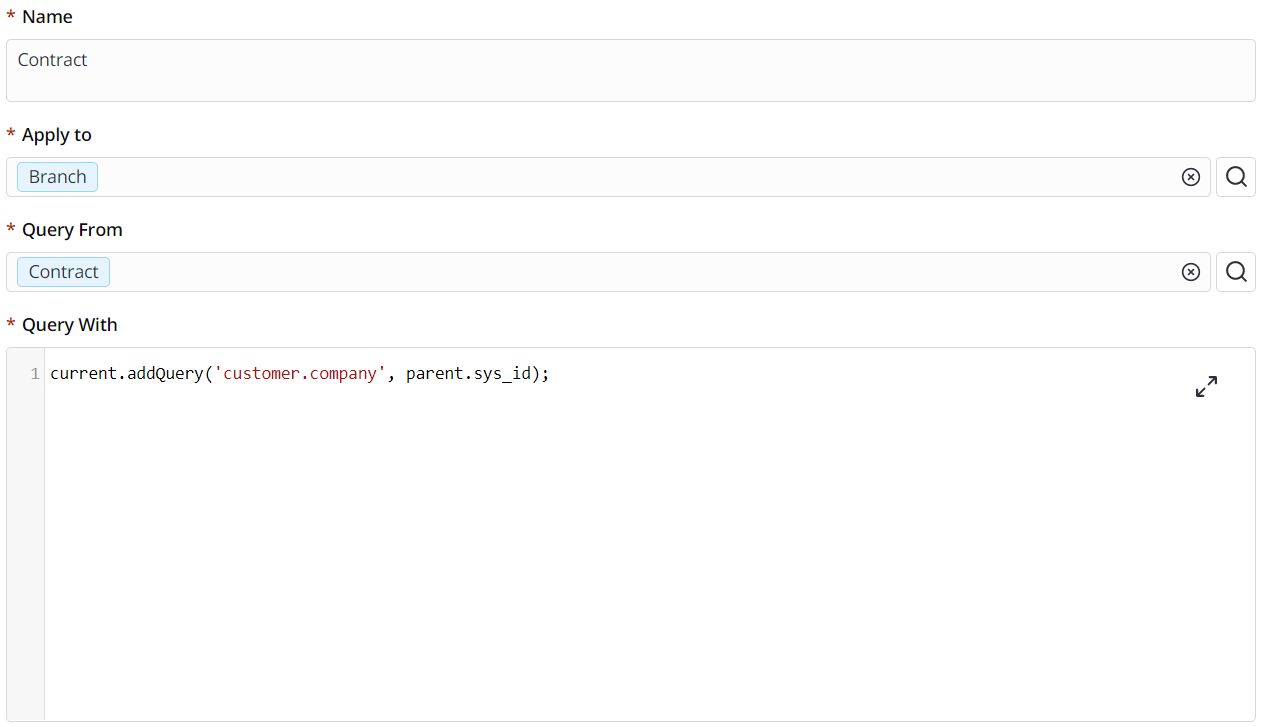
- The current object is an object of the table where the query is created (the table specified in the Query from field).
- The parent object is a reference to the object of a table specified in the Apply to field.
In other words, the parent object is a record form specified in the Apply to field, and a current object is a list from a table specified in the Query from field.
You can use any SimpleRecord Server-Side methods as directives in the current and parent objects.