Activity Feed
The Activity Feed allows you to track record and communicate with people involved by leaving comments in Discussion.
The Activity Feed contains two main areas:
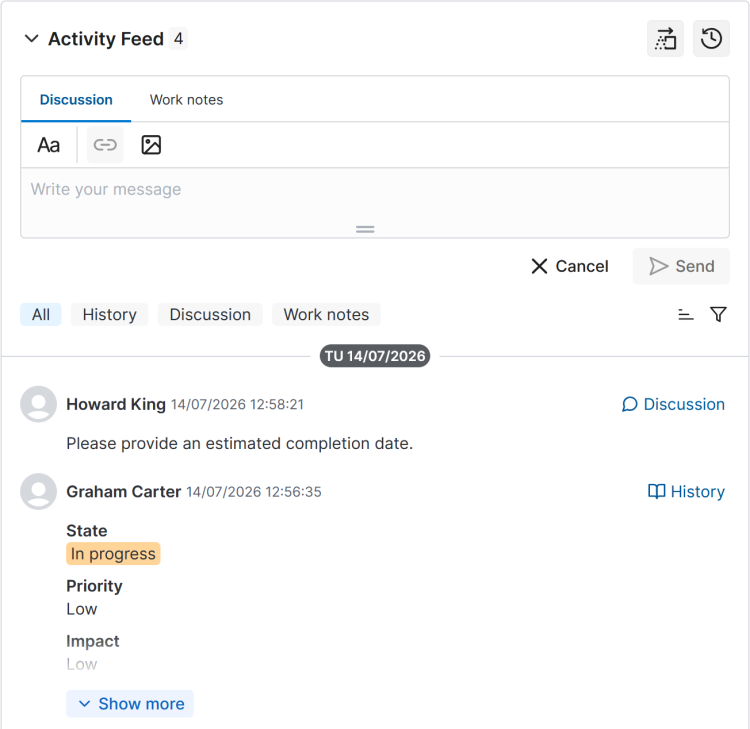
Message entry area
Depending on your roles in the system, you may have access to different sets of fields in the Activity Feed. For example, if you have no roles other than user, you can only leave comments in the Discussion field. If you have certain roles, Work notes will also be available.
To leave a message in the required category, click the corresponding tab above the input field, enter the message text, and click Send (you can also use the Ctrl + Enter keyboard shortcut). To clear the input field, click Cancel.
When entering a message, you can format text, and insert links and images. Click to expand the toolbar with all available text formatting options.
To make text editing more convenient, you can change the field height by dragging at the bottom of the input area.
Event history area
In the main area of the Activity Feed, comments and record field changes are displayed in chronological order.
To filter the information displayed in the feed, click the corresponding badge under the input field:
- All – displays field changes and all comments left on the record.
- History – displays only record field changes.
- Discussion – displays only additional comments left on the record.
- Work notes – displays only work notes left on the record.
To display several categories of information simultaneously, for example History and Work notes, click and select the required categories:
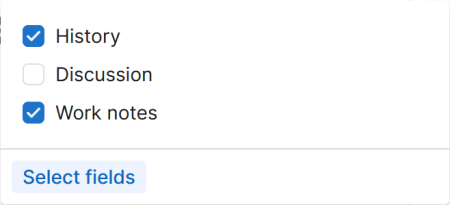
You can also configure the set of fields whose changes should be displayed in the feed. To do so, complete the following steps:
-
Click in the Activity Feed.
-
Click Select fields.
-
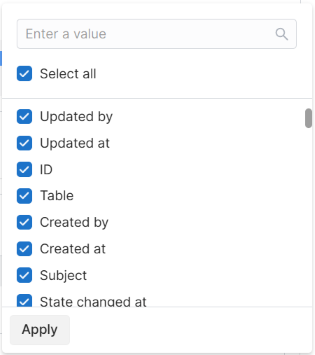
Clear the checkboxes of the fields whose changes you need to remove from the Activity Feed.
-
Click Apply.
The following fields are not displayed in the Activity Feed history and are not available for selection when configuring displayed fields:
- (Created at) sys_created_at
- (Created by) sys_created_by
- (Table) sys_db_table_id
- (ID) sys_id
- (Updated at) sys_updated_at
- (Updated by) sys_updated_by
Change history mode
For each record change, the information about who made the change and when, as well as the new values of the changed fields, is displayed.
To compare the new values with the previous ones, click in the upper-right corner of the Activity Feed. Field value changes are displayed as follows: Previous value → New value.
Event chronology mode
The Activity Feed also offers a more compact event chronology mode, which can be enabled by clicking in the upper-right corner of the Activity Feed.
In the collapsed view, each event only displays who made changes and when, as well as which fields were changed.
To view the full event record, click in its row.
In this mode, you can also display field value changes. To do so, click .
Event sorting
By default, events in the Activity Feed are displayed from newest to oldest. To sort records from oldest to newest, click .
Click to restore the default sorting.