Lists
In SimpleOne, a list is the way to represent records. It consists of a number of elements and provides various ways to interact with records.
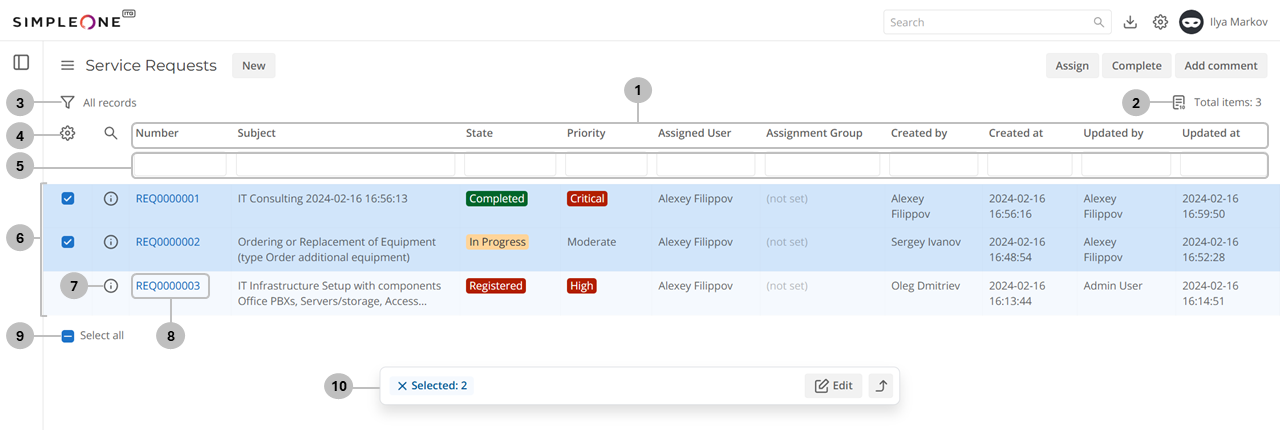
The list interface includes the following elements:
-
Columns – column names of the current table. You can click a column name to open the context menu.
infoThe list interface may include columns marked with the A icon. These are the attributes of record extended models (М), which are used in tables to extend their data.
-
List – click the icon to select the number of items displayed per page. The number of records displayed by default is configured in the Preferences menu.
-
Funnel – click this icon to use the condition builder for filtering.
-
Gear icon – click this icon to change the set and order of columns displayed.
-
Search boxes – click the magnifier icon to the left of the column names to open search boxes. Here, type the value that a column should contain to find certain records.
-
List of records – records included in the table are displayed in rows. To delete a record, select the checkbox to the left of the record and click Delete in the top right corner.
-
Information icon – click this icon to preview the information about the record.
noteYou can open a record from the preview form: click the record information icon and then click Open record.
-
Cell – the column value of a certain record. To open a record form, click the first cell of the record on the list. You can change values of columns using inline editing.
-
Select all – click to select or deselect all records in the list.
-
Editing panel – click Edit to change field values in all the selected records at once. On the panel, Selected displays the number of records selected in the record list. Click to deselect all these records. You can also move the editing panel up by clicking .
Compact view
You can enable the Compact view in your Preferences.
The compact view allows you to display more information on the screen. It features a denser list layout and hides applied filter conditions under a counter. You can view and manage the conditions by clicking the funnel icon next to the counter.
Inline editing
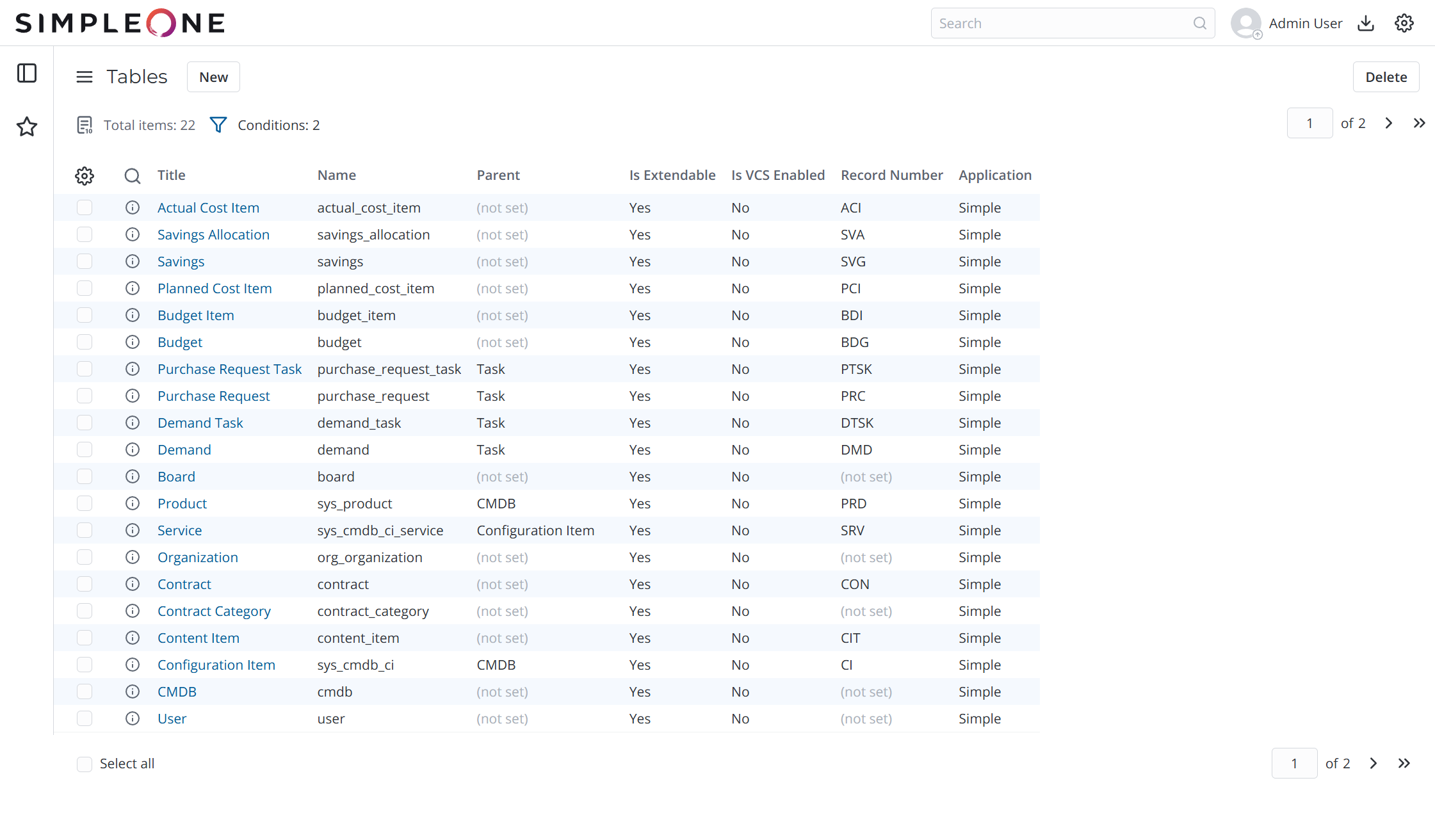
You can edit field values of records in the list view without opening a record form.
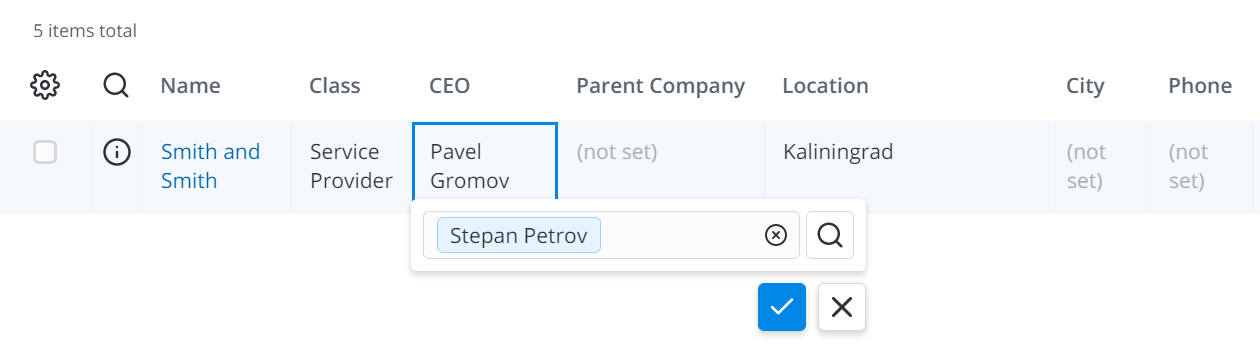
To edit a field in the list view, complete the following steps:
- Double-click the cell containing the value you need to change.
- Depending on the chosen column:
- enter a new value.
- select a value from the drop-down list.
- select a record from the dictionary by clicking the magnifier icon .
- define the date and time by clicking the calendar icon .
- Click the check mark icon
 to apply the changes.
- Record extended model attributes are not available for inline editing.
- If you do not have access rights to view some records, the reference columns displays the unavailable data text.
- If ACL rules restrict access to the Display Name of a record, then the column displays the unavailable title text.
- If the referenced record is deleted, the column displays the record not found text.
Bulk editing
Using lists, you can edit field values in several records at once. To do this, complete the following steps:
-
Navigate to the table whose records you need to edit.
-
Select the checkboxes next to the records you need to edit.
-
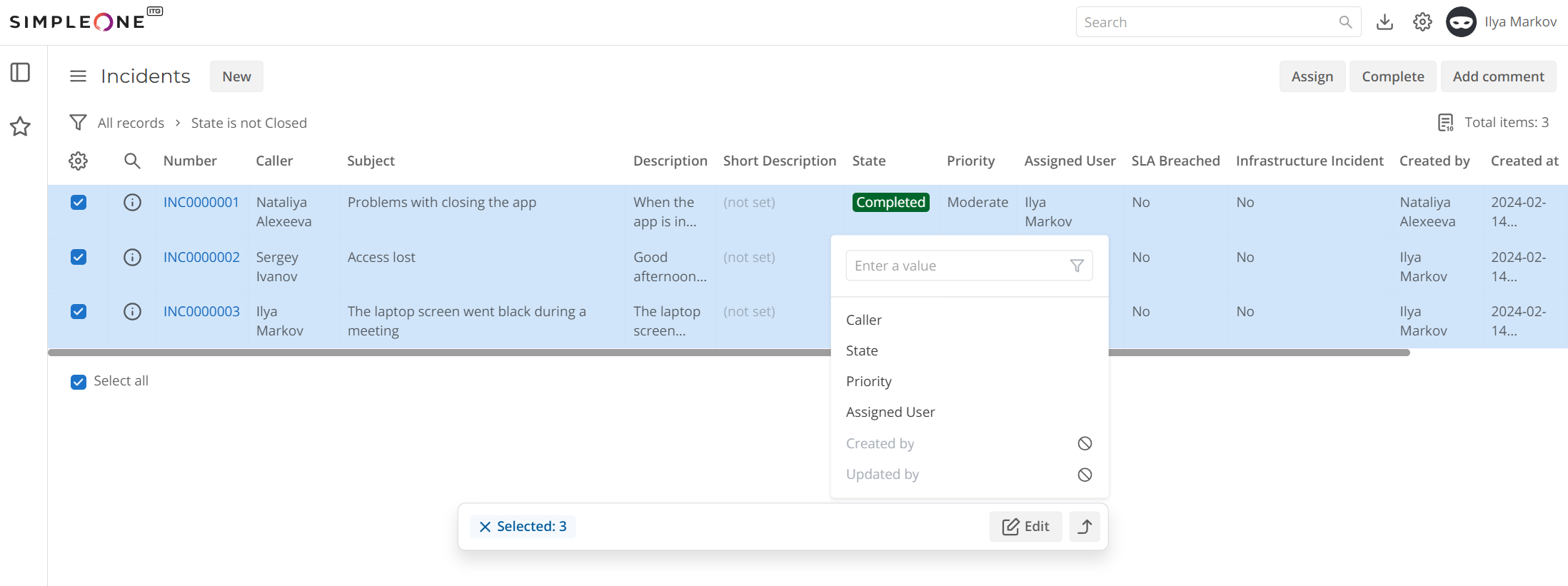
On the editing panel that opens, click Edit.
-
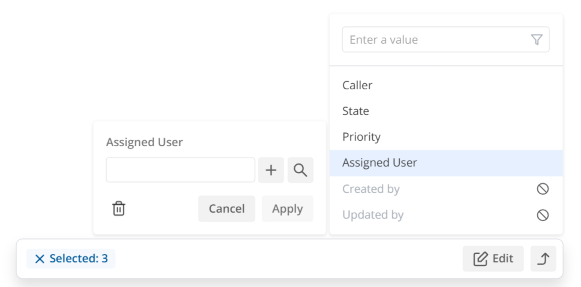
In the dropdown list, click the name of the field whose value you want to change in the selected records. You can also use the search bar. The icon next to a field name means that this field is unavailable for editing.
-
Select the appropriate field value and click Apply. You can also clear this field's value in the selected records by clicking . This icon is inactive if the field is mandatory. It is not displayed for fields of type Choice.
-
To view the updated field values, reload the page. Until you do, the fields will be unavailable for inline editing.
Filtering
As tables can contain a lot of records, it may get difficult to navigate through them and find the records you need. SimpleOne provides several ways to find, filter, group, and sort records.
The list interface provides four ways of searching and filtering records:
-
using the condition builder
-
using the search boxes
-
using the following options from the column name context menu (to open it, click the column name):
-
Sort ascending – sorts records by the column value: from smallest to largest, from A to Z, from earlier dates to later dates.
-
Sort descending – sorts records by the column value: from largest to smallest, from Z to A, from later dates to earlier dates.
-
Group: {column title} – divides records into groups by the selected column value.
 note
noteBy default, the records in lists are sorted by the ID value in descending order.
-
-
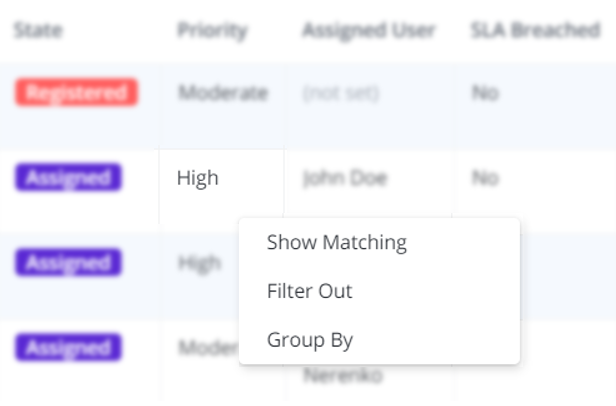
using the following options from the row context menu (to open it, right-click the cell):
-
Show Matching – displays all records with the same column value.
-
Filter Out – sorts out all records with the same column value.
-
Group By – divides records into groups by the selected column value.
-
Condition builder
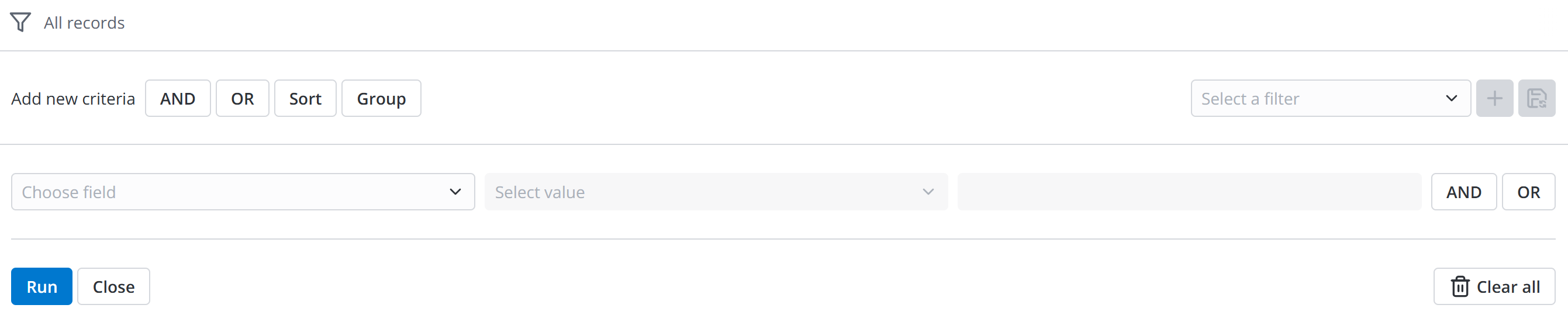
The condition builder is a tool that allows you to create conditions for selected fields with specific values and sort them in a particular order. To do so, complete the following steps:
-
Click the funnel icon to open the condition builder.
-
Add dependencies using the AND and OR buttons. Also, you can add high-level conditions using these buttons on the condition builder toolbar.
-
Click Run to apply filters and get the selection of records.
- You can also delete the filters by clicking the Clear All button.
Other available actions:
- Sort – allows you to add conditions for the field sorting.
- Group – allows you to group the records by a specific column.
- Select a filter – allows you to select one of the filters configured for the table by you or other users.
- Save new filter – saves the created configuration as a new filter. You will see a modal window where you need to enter a unique name for the filter.
- Save filter updates – opens the modal window where you can save changes to the filter conditions. You will be able to select a filter to apply the changes. Note that if you change the condition configuration and refresh or close the page without using this UI action, the changes will be lost.
- Close – hides the condition builder.
- Run – runs the configured condition to apply the filter.
On lists and in dictionaries, you can find breadcrumbs by the funnel icon. They represent applied conditions:
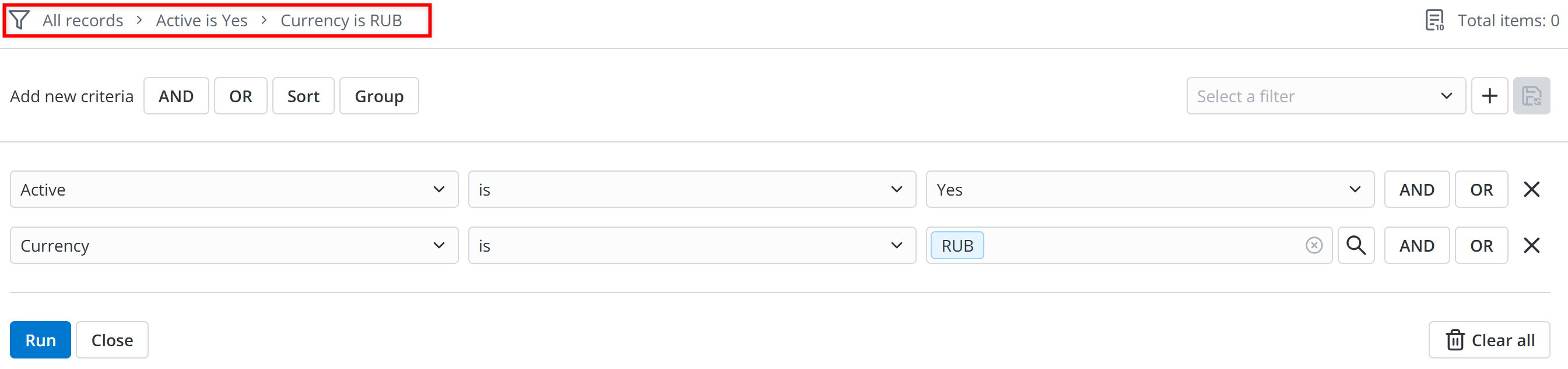
In the compact view, applied conditions are hidden under a counter. To view and manage the conditions, click the funnel icon .

-
To clear filters of the condition builder:
-
click the arrow icon to clear a condition to the right of the arrow.
-
click a condition to clear all conditions except the selected one.

-
-
To add a list filter to the Favorites menu, drag the breadcrumbs to the Favorites navigation tab.
Search boxes
Search boxes appear above a table in the list view. To display them, click the magnifier icon the left corner at the top of the list.
You can find the record you need by typing some characters, a word, or several words. The search returns records that contain the specified input. The condition equals to [Column] contains [value] and will be displayed in breadcrumbs.

Grouping on lists
By grouping records that appear on the list, you can divide all records into groups based on the defined column values. As a result, the list of records is divided into sublists. That is, records with the same value form a group with the corresponding heading. The function provides information on the number of records included.
To configure the grouping, click the column title to group the records by and click Group: {column name}.
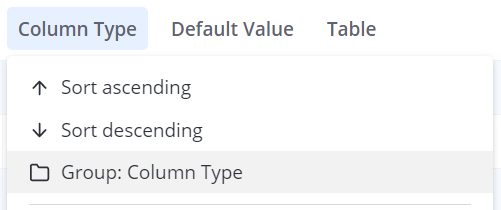
For example, you need to group reports from the Reports (sys_reports) table by the Type field. After configuring the grouping, the list will look in the following way:
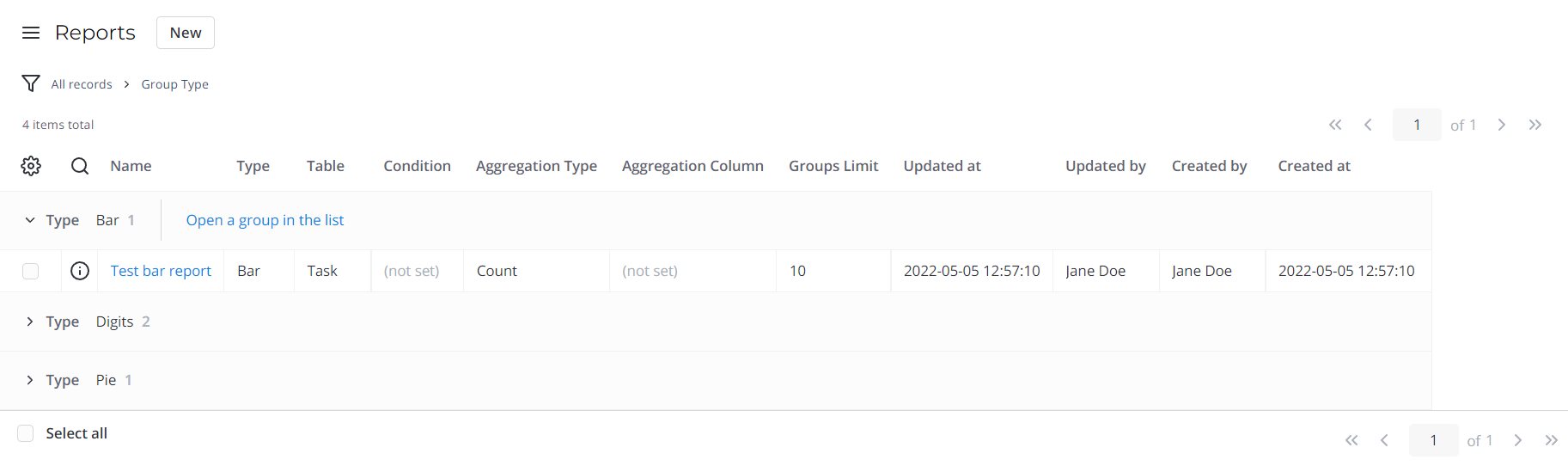
In the list view, the following options are available to operate the groups:
- Expand and collapse any group. To do so, click the group.
- Expand and collapse all groups. Open the context menu by clicking one of the column titles or right-clicking any line on the list and select the Expand all groups or Collapse all groups option.
- Sort groups in ascending or descending order by the group name or the number of records in it. Open the context menu by clicking one of the column titles or right-clicking any line on the list and select the corresponding option.
- Change the base column of grouping. To regroup records based on another column, click the column title you need and select Regroup: {column name} in the context menu.
- Open a group in a distinct list view. Point to the group you want to open and select Open a group in the list.
- Ungroup. To do so, open the context menu by clicking one of the column titles or right-clicking any line on the list and select the Ungroup option.
You cannot group or sort by the record extended model attributes added to the list.
Create reports
You can create a report directly from a list without going to another menu category. Open the title context menu by clicking a column title and selecting one of the following options:
- Open Pie Chart – represents data in the form of a circular statistical graph.
- Open Bar Chart – represents data in the form of rectangular bars.
You cannot create pie or bar chart reports on the record extended model attributes added to the list.
Configure personal list layout
In SimpleOne, you can configure your personal list layout: choose columns to appear on the list and define their order.
To do so, click the gear icon to the left of the list.
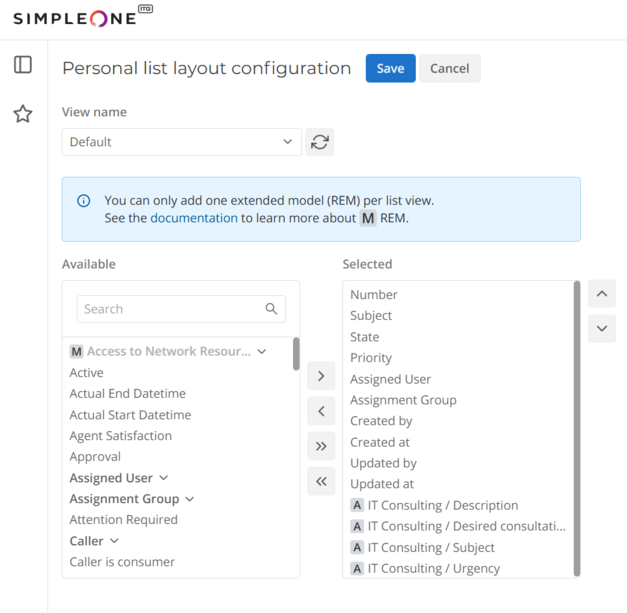
The Available box contains all table columns that can be added to the list, including the attributes (A) of record extended models (M). To add the elements, move them to the Selected box. You can move the elements by dragging them or using the and buttons.
- To remove or add all the columns, click the or button.
- To move several elements in a row, select them with the Shift key pressed and drag them from the Available layout area to the Selected one.
- To move several scattered elements at once, select them with the Ctrl key pressed and drag them from the Available layout area to the Selected one.
- To reset your layout to default, click .
List views
You can find all the views created for this list by clicking its burger menu and selecting View. Click a view to display it by default when you open the list.