AI Assistant
You can ask questions and report problems in the Chat with AI Assistant if it is configured in your system.
To ask the AI Assistant a question, complete the following steps:
-
On the main page of the portal, click the AI Assistant card. You can also open the chat from the search results by clicking the Ask AI Assistant button if it is configured.
-
Type your message in the field and click to send it.

The AI Assistant will determine if your message is a user query, service request, or incident, and find relevant information in the system. It will also link its sources so that you can read more if needed.
Create tickets
If the AI Assistant does not find any relevant information, or you tell it that the information it found did not help with your issue, it will offer to fill out a ticket to the service desk. If the AI Assistant categorizes your message as a service request, it will list the service requests it found and offer to fill out the suitable one.
The ticket category will depend on how the AI Assistant categorized your message. If the ticket category it offers does not suit you, ask it to create a ticket of the category you need. You can also ask the AI Assistant to create a service request, incident, or, in case these categories are not suitable, a query to the service desk by writing about it in the chat.
The AI Assistant will fill out this ticket based on the information you provided in the chat. It might also ask you some additional questions. Once the ticket is filled out, the AI Assistant will send you the link to its form. Click it to view and send the ticket. You can edit the fields before sending.
To track your ticket's progress, navigate to Activities → Tickets and open its form.
After you send the ticket created via the Chat with AI Assistant, the corresponding chat will be closed. To ask the AI Assistant another question or create another ticket with its help, open a new chat.
Interface and features
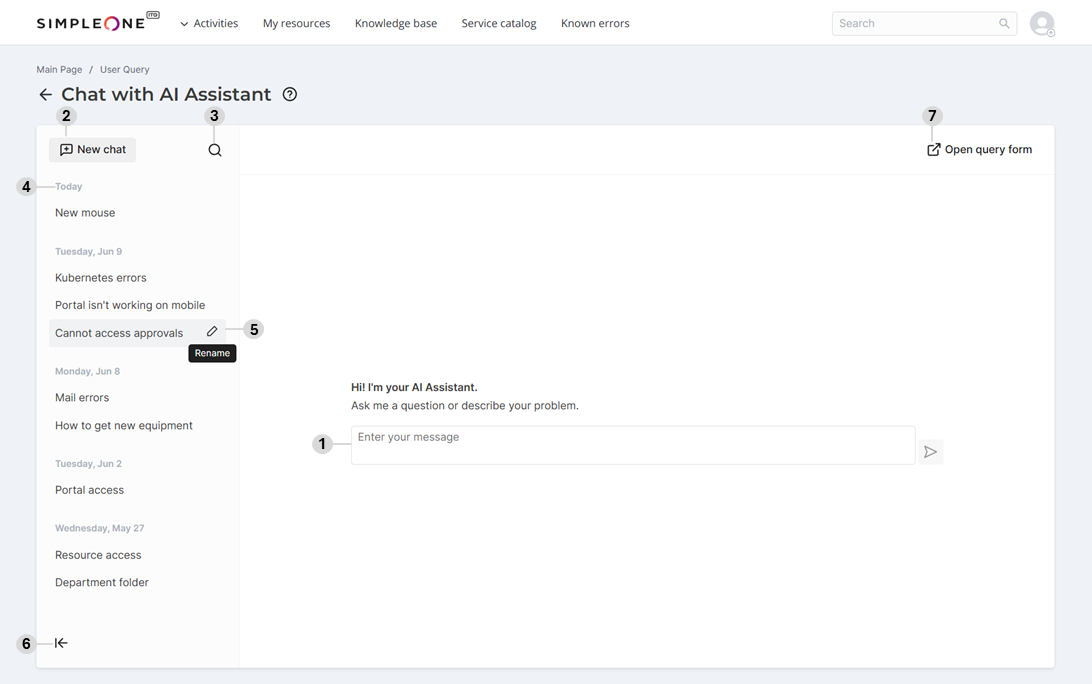
In the Chat with AI Assistant, you can:
- Enter your question to the AI Assistant and send it by clicking the icon or pressing
Enter.- When entering the message, you can add a line break by pressing
Shift+Enter. - If you enter a message but do not send it, it will be saved in the field for this chat even if you then switch to another. Return to the corresponding chat to send the message.
- If the chat is closed, the field for entering a message will be hidden. Create a New chat.
- When entering the message, you can add a line break by pressing
- Create a new chat with the AI Assistant.
- Find an existing chat by its subject.
- Chat subjects are generated automatically based on your initial question.
- View the chat history and open the chat you need by clicking its subject.
- In the history, chats are grouped and sorted by the date they were last updated on.
- Rename a chat.
- The button appears when you move the pointer over a chat's subject. Click it, edit the subject, and press
Enteror click anywhere outside the field to apply the changes.
- The button appears when you move the pointer over a chat's subject. Click it, edit the subject, and press
- Collapse or expand the chat history panel.
- To open the panel on mobile, click the icon.
- Open the form for creating a user query to contact the service desk.