Add Tasks to Board
Add tasks to the Kanban project board when you need to start working on them. To open the Add tasks to board widget, complete the following steps:
-
Open the required project's Kanban board.
How to open a task board
-
Navigate to SDLC → General Settings → Project Boards, open the required Board form and click the Open board button.
tipRole required: pda_user, pda_admin.
-
Navigate to SDLC → Projects → All Projects / My Projects, open the required Project form and click the Open board button.
tipRole required: pda_user, pda_admin.
-
-
To open the widget, click the Add tasks to board button located in the upper-right corner of the Kanban board. You can return to the board by clicking the Open board. Click Add to favorites next to the project title to add the board to Favorites.
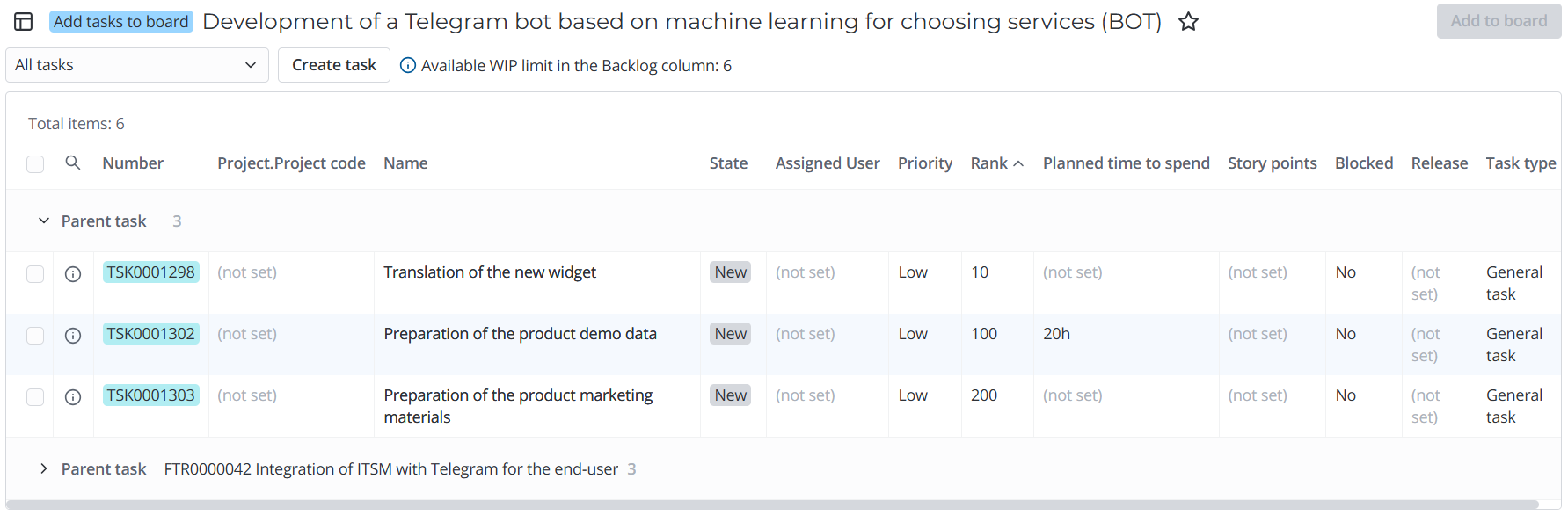
Task list
To get in the widget task list, a task needs to meet all of the following criteria:
- The task is not canceled,
- The task is not released,
- The Task type is of the third level and added to the board project,
- If a State Model in Project record exists for the task type, it allows a transition from the current task state into the state of the board's first active column,
- If there is no State Model in Project record for the task type, the order of the current task state choice option must be smaller than the order of the first board's active column state choice option.
Further conditions depend on the option selected in the drop-down filter at the top of the page:
| Filter | Additional condition |
|---|---|
| All tasks |
|
| Project tasks | The task Project equals the board project. |
| Tasks without a project |
|
The list is by default grouped by the parent tasks. Records with no parent task are located higher. The tasks are sorted in ascending order according to the Rank. When the tasks' ranks are identical, the system checks their Priority.
Add tasks to project board
Consider Available WIP limit in the "Name" column when you add tasks to the project board. It is the number of tasks that can be added to the board's first active column without exceeding its WIP limit. This number depends on the WIP limit of the first column or the WIP limit of the area the first column belongs to.
If the first columns are different for tasks of different types, the WIP limit counter is not displayed in the widget.
Read more in the Configure Board Elements aticle.
To add a task to the project board, complete the following steps:
-
Find the required task in the list.
-
Select the checkbox on the left from the task number. You can select all tasks on the page by selecting the checkbox in the list header.
-
Click Add tasks to board button located in the upper-right corner of the widget. The button becomes active if at least one task is selected.
-
You will see the number of selected tasks in the opened Add tasks to board modal window. If you exceed the WIP limit when moving tasks to the board, a corresponding warning is displayed. Click Back to return to the previous step and change the task list. Click Add to add the selected tasks to the project board.
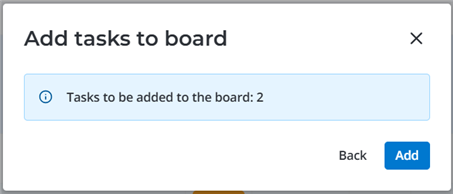
When tasks are added to the board:
- The state of the selected tasks changes to the state of the first active column on the board according to the task type state model.
- The Project field of added tasks of all types is filled in with the current project if it was empty.
- If the Product development checkbox is selected for the project, the Product field is filled in with the current project's product in all the added tasks.
-
Wait until the tasks are added to the board.
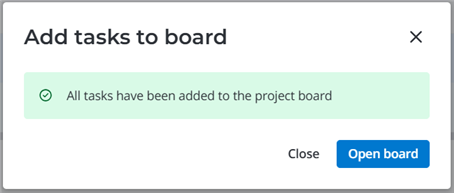
-
Click Close to close the modal window and stay in the Add task to board widget or click Open board to proceed to the project task board.
Create a new task in the Add tasks to board widget
To create a new task in the Add task to board widget, complete the following steps:
-
Click Create task in the header of the widget.
-
Fill in the fields of the create task modal window. The values of the following fields are filled in automatically or have limitations:
- Task type – you can select from the third-level task types added to the project.
- State – you can select from the state of the leftmost active column on the board or the states preceeding it.
- Project – the field is completed automatically and read-only.
- Product – if the Product development checkbox is selected for the project, the field is completed automatically and read-only.
-
Click Create. The new task will be displayed in the list of available tasks if it matches the selected filter criteria or on the board if its state matches one of the board's columns.